Phase 1: Business Trip Agreement
Step 1: Draft
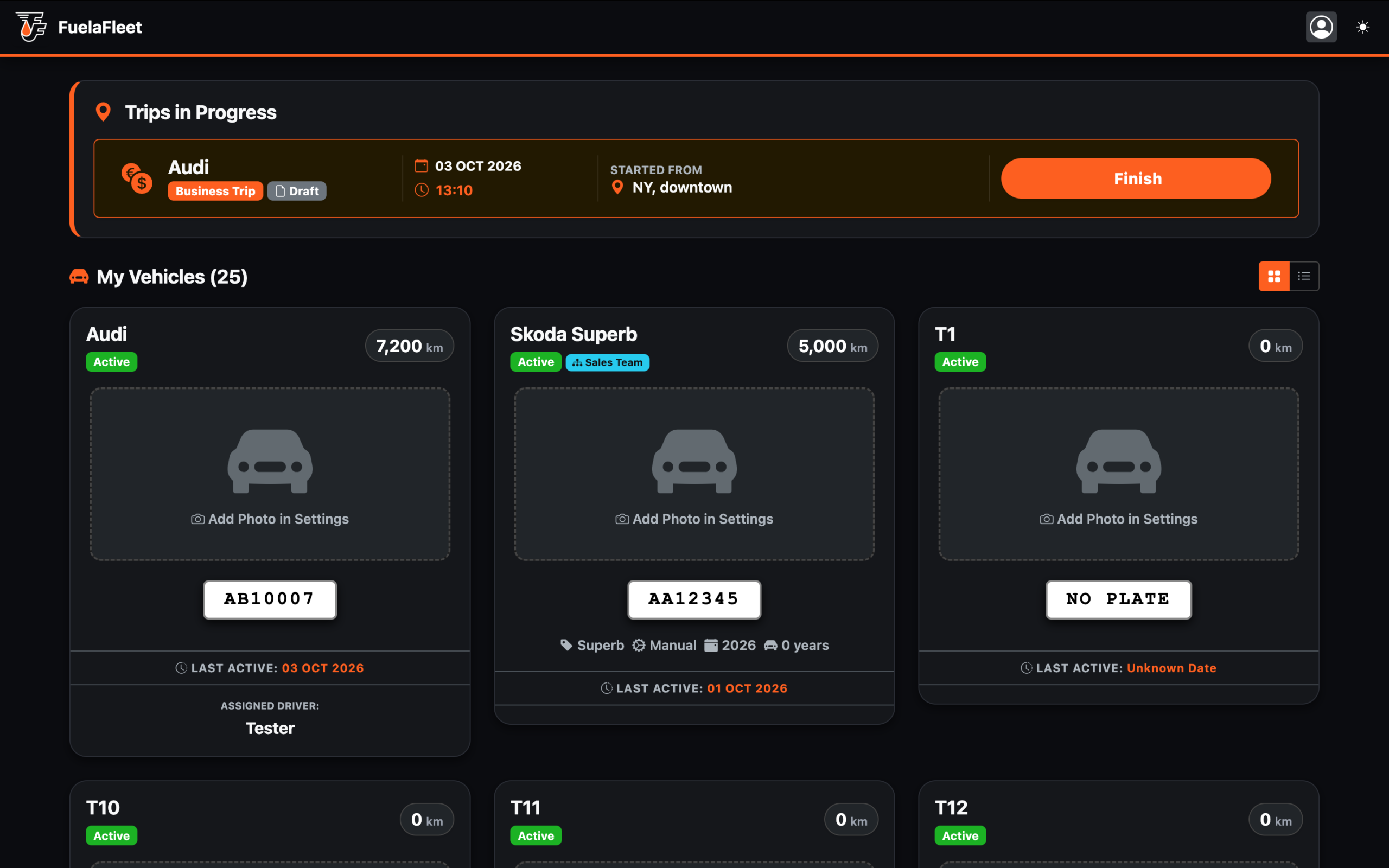
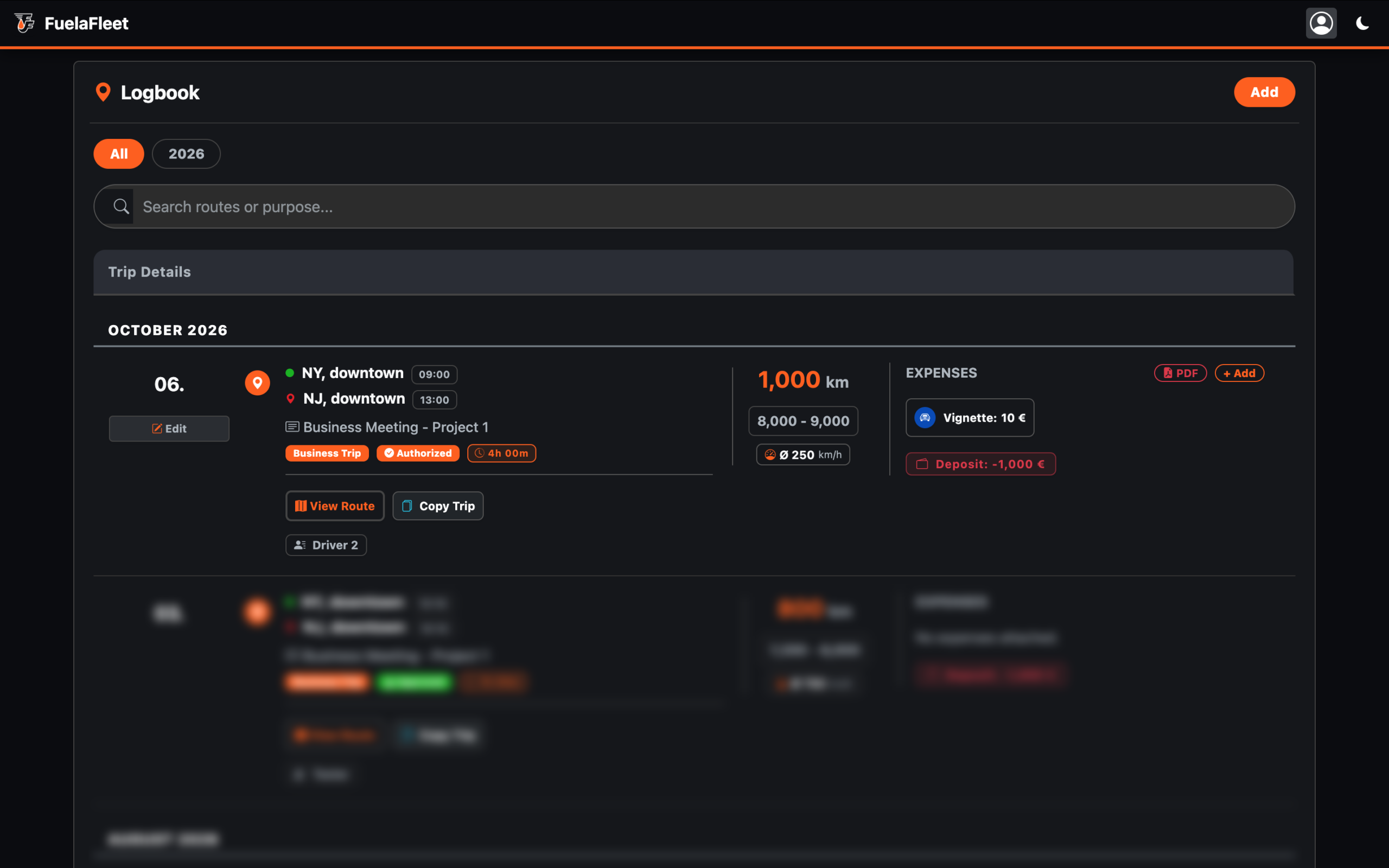
An Admin or Team manager creates a future trip and assigns it to a Driver. (Or the Driver creates it themselves as a request).
Tip: Multiple future trips can be created but only an administrator or manager can create a trip for a driver who needs to use a vehicle assigned to another driver.
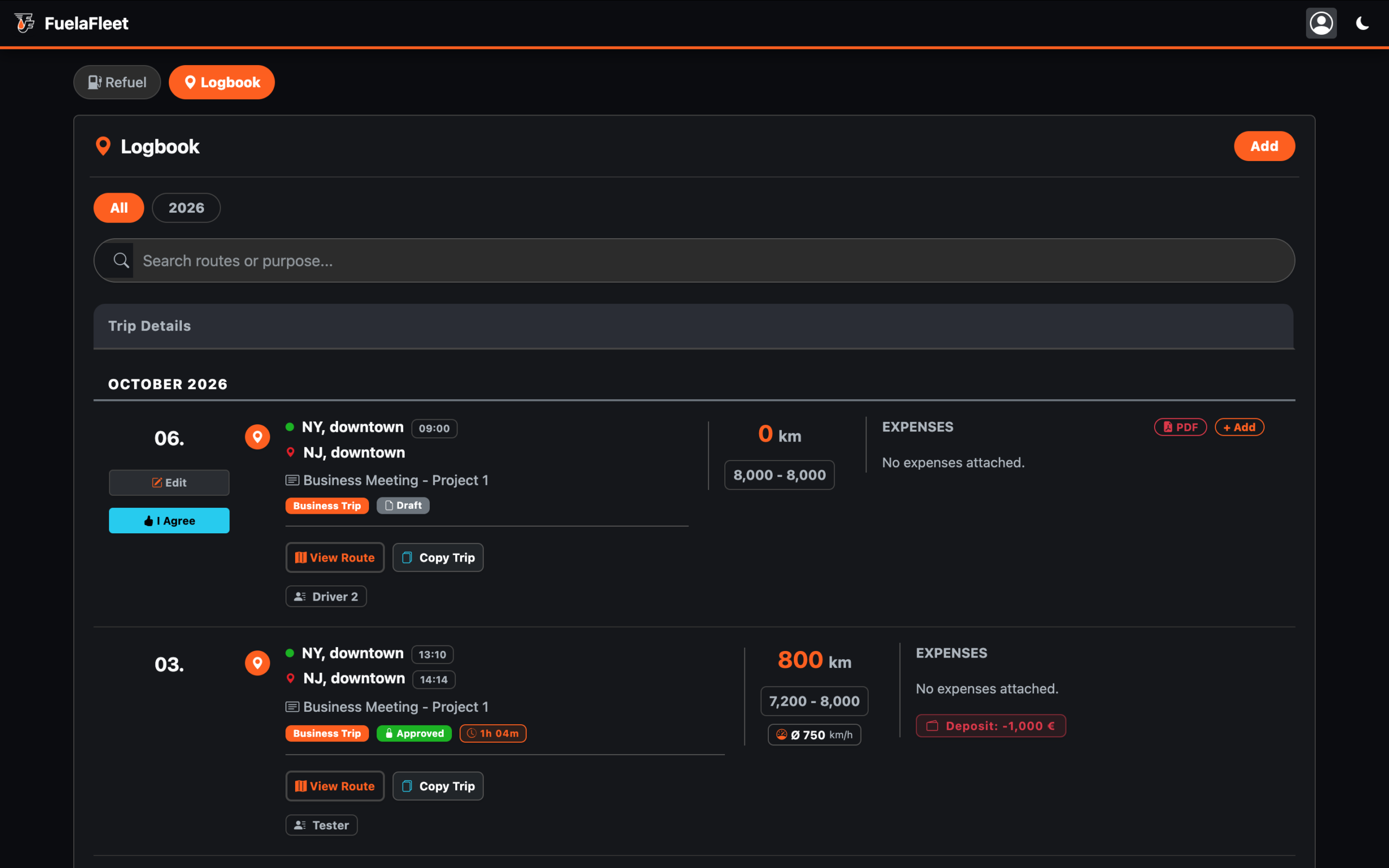
At this stage, the trip has a grey badge: “Draft”.
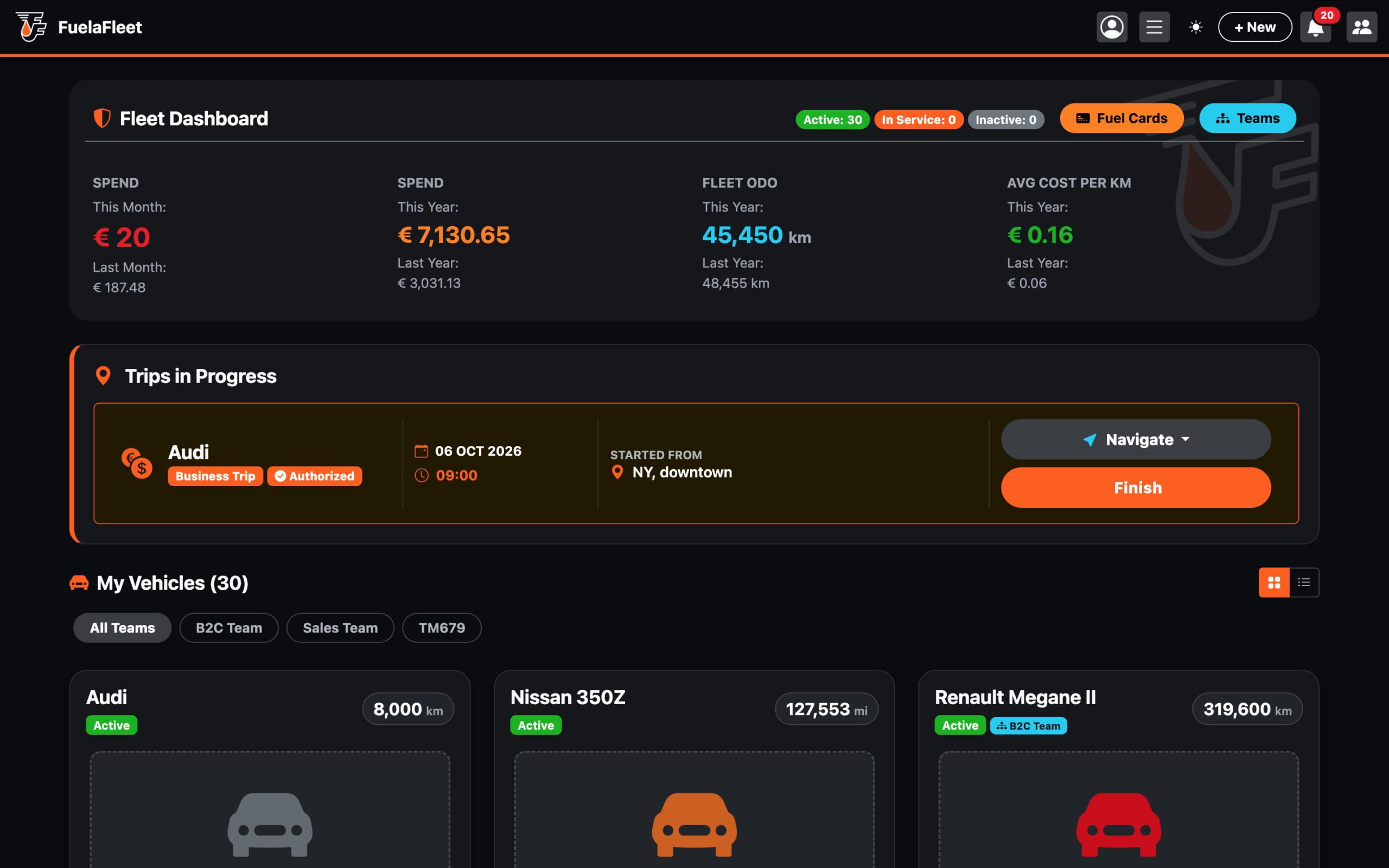
Dashboard Update: This new trip will be clearly visible in the “Trips in Progress” widget, marked as “Draft”.
Step 2: The Driver’s Consent
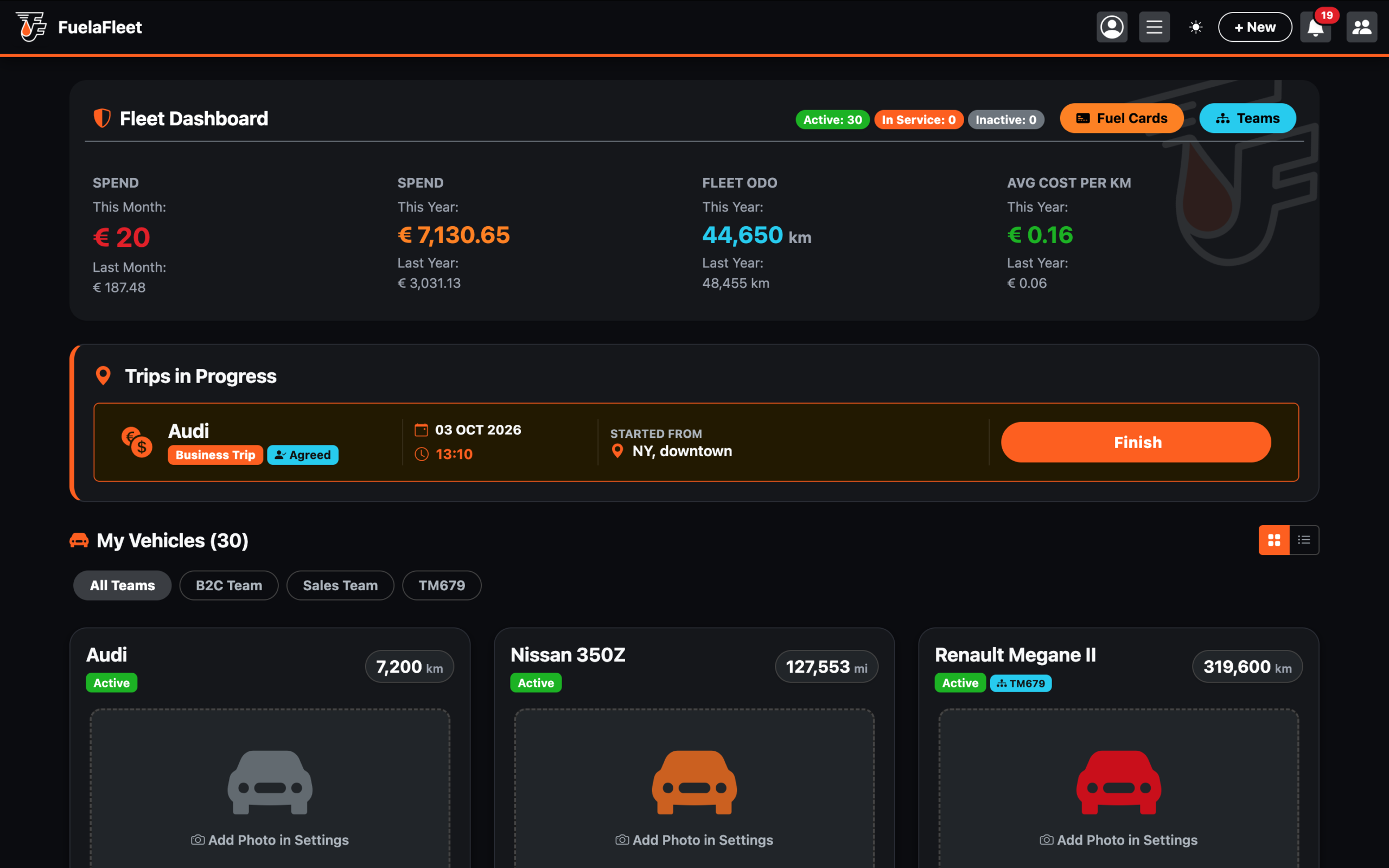
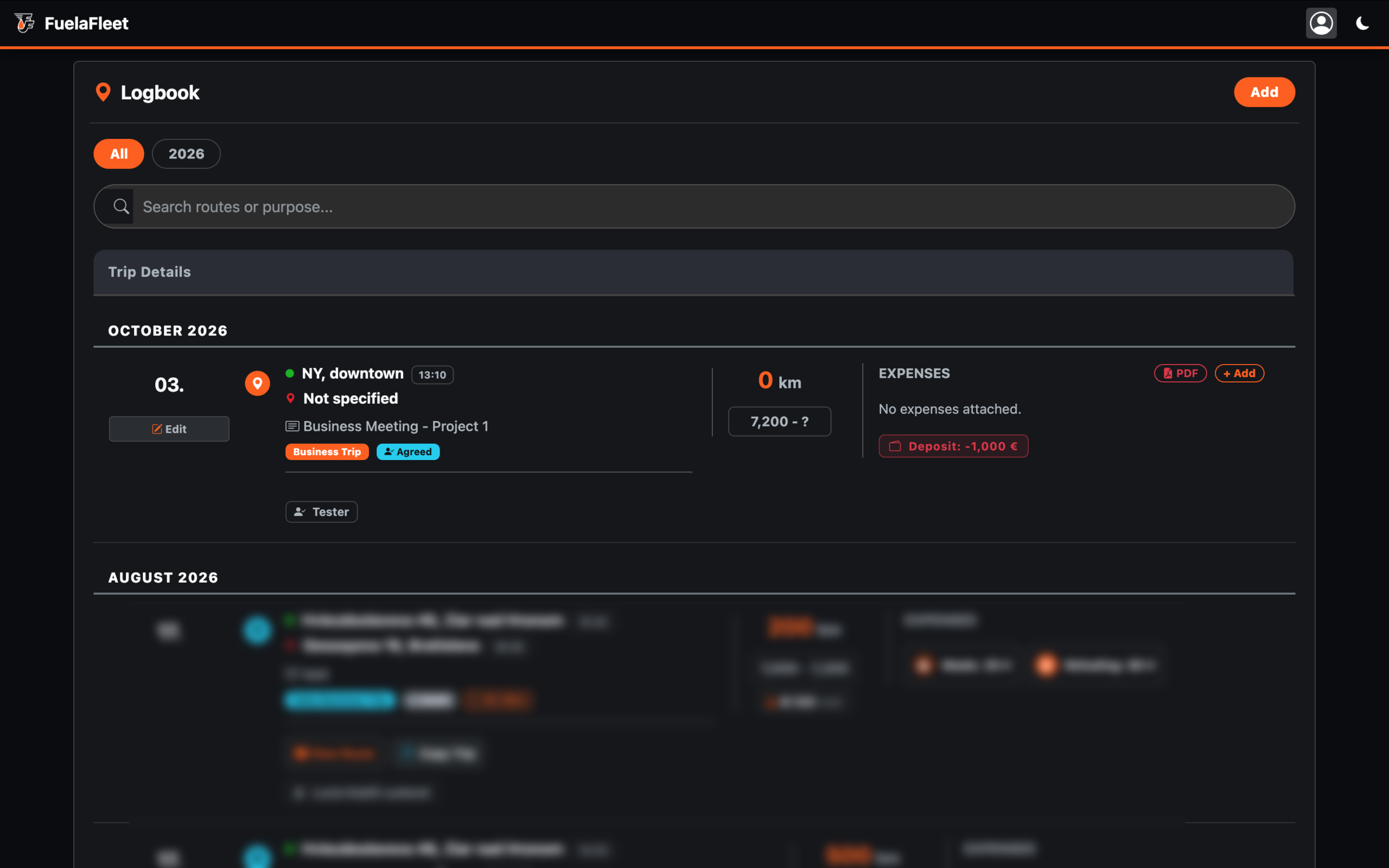
The Driver opens their app, sees the upcoming trip, and clicks a new blue button: “I Agree”. The application saves the exact date and time of the click and generates a digital timestamp. The grey badge “Draft” turns blue: “Agreed”.
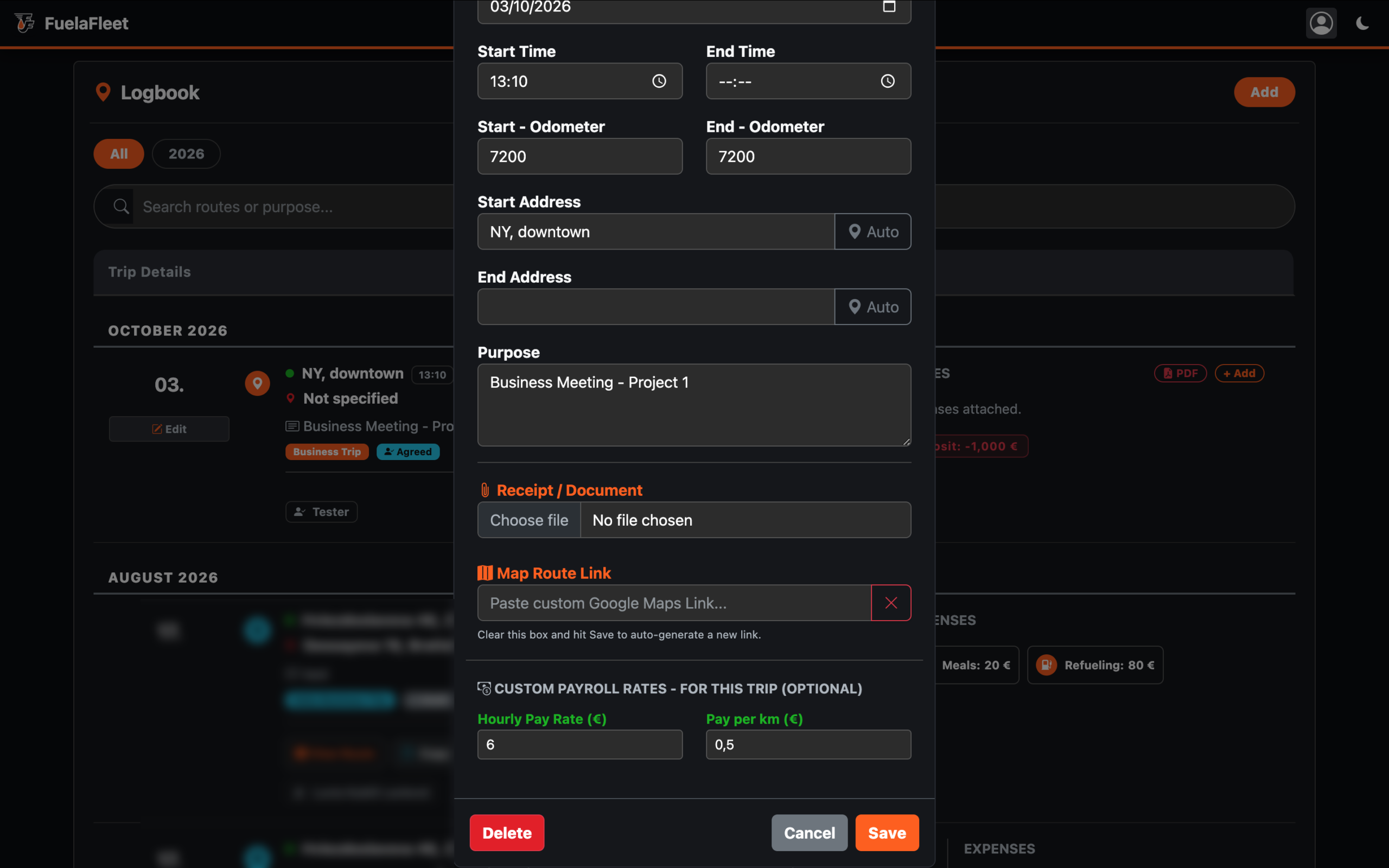
The driver drives the car, finishes the trip, and uploads their meal/hotel receipts or other expenses. The driver can edit the trip, for example: change “Custom Payroll Rates – For This Trip (Optional)”, add a receipt/document, or insert a Google Maps route link.
Phase 2: The Manager's Authorization
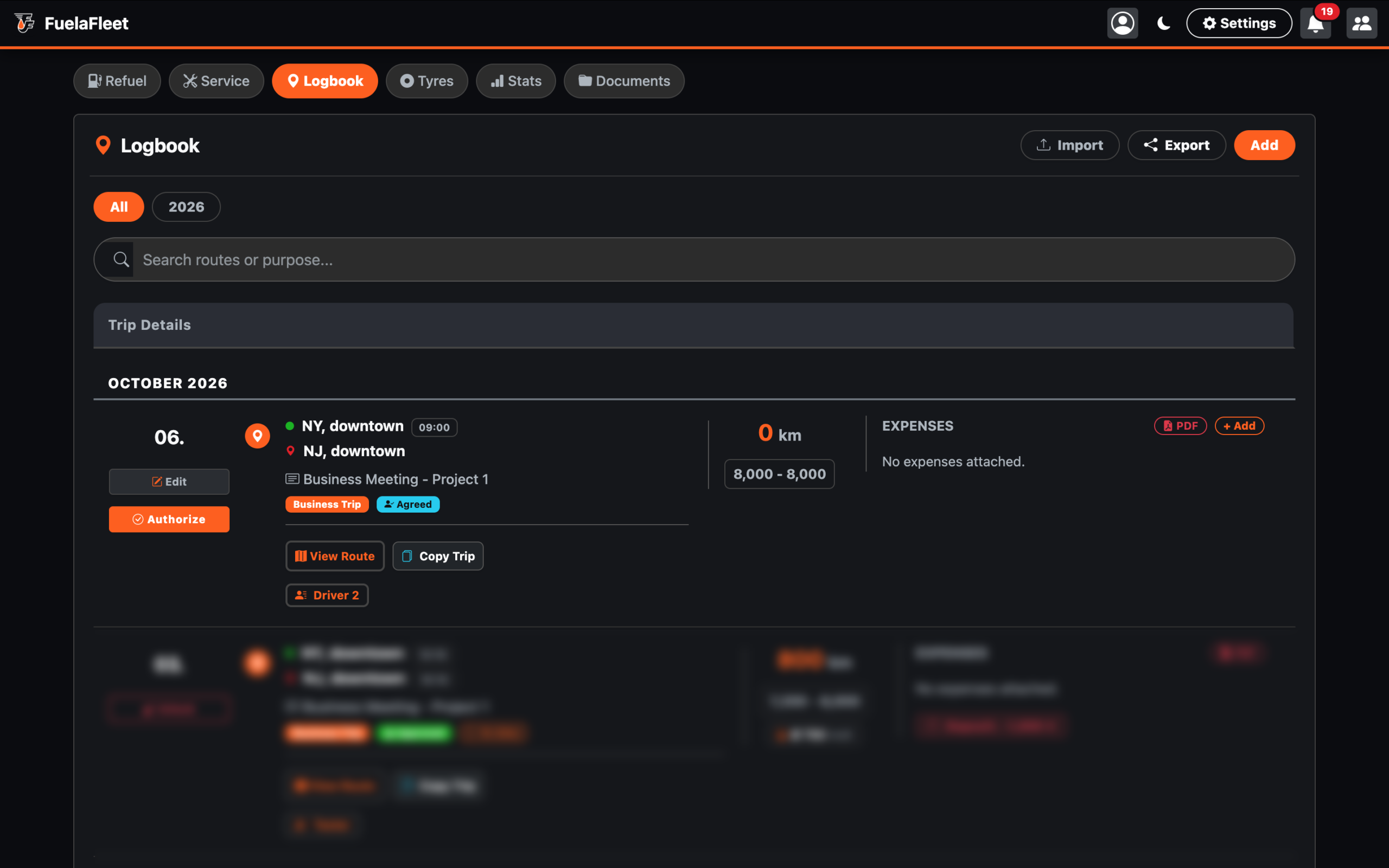
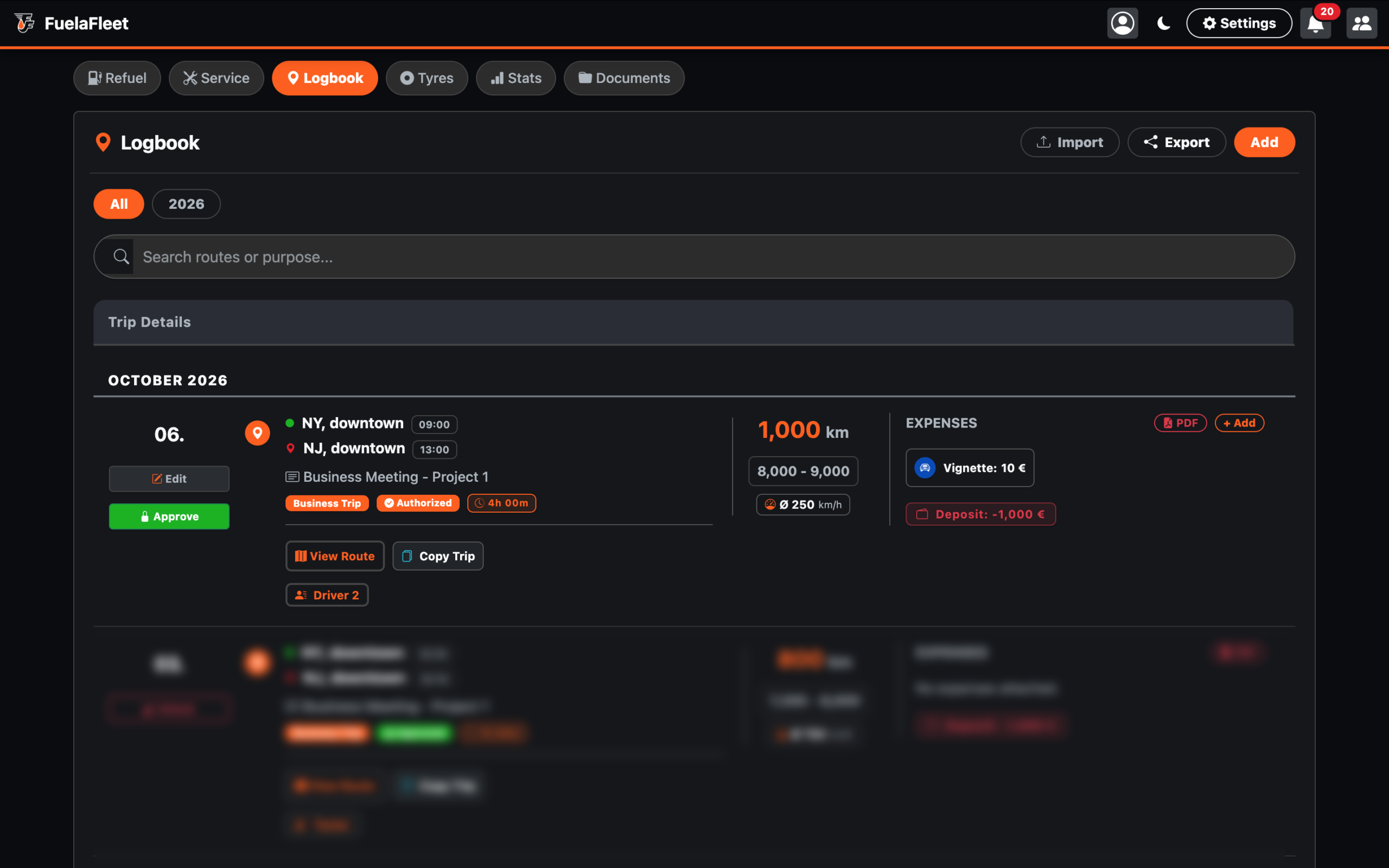
The Admin or Team manager sees the driver has agreed, and clicks the new orange button “Authorize”. The app saves the Admin’s Name and the Date.
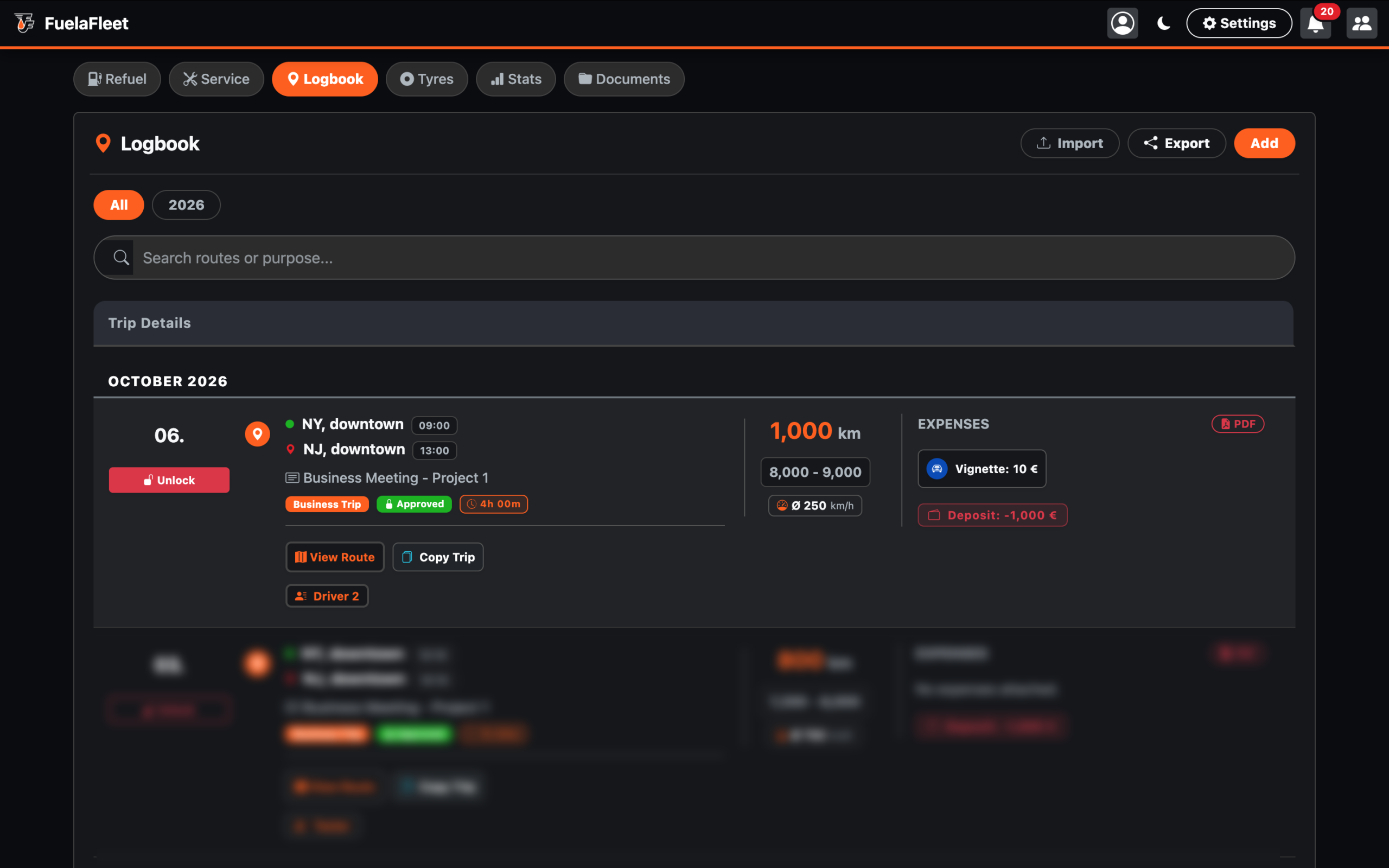
After click, the button change the colour to green and the name to “Approve” with small lock icon. The blue badge “Agreed” turns orange: “Authorized”. It also now shows up on the main Dashboard as an authorized active trip in the Trips in progress.
Phase 3: The Final Settlement and Expense Approval
Step 1:
Driver sees the orange badge “Authorized”. The trip happens. The driver adds their expenses and clicks “Finish”.
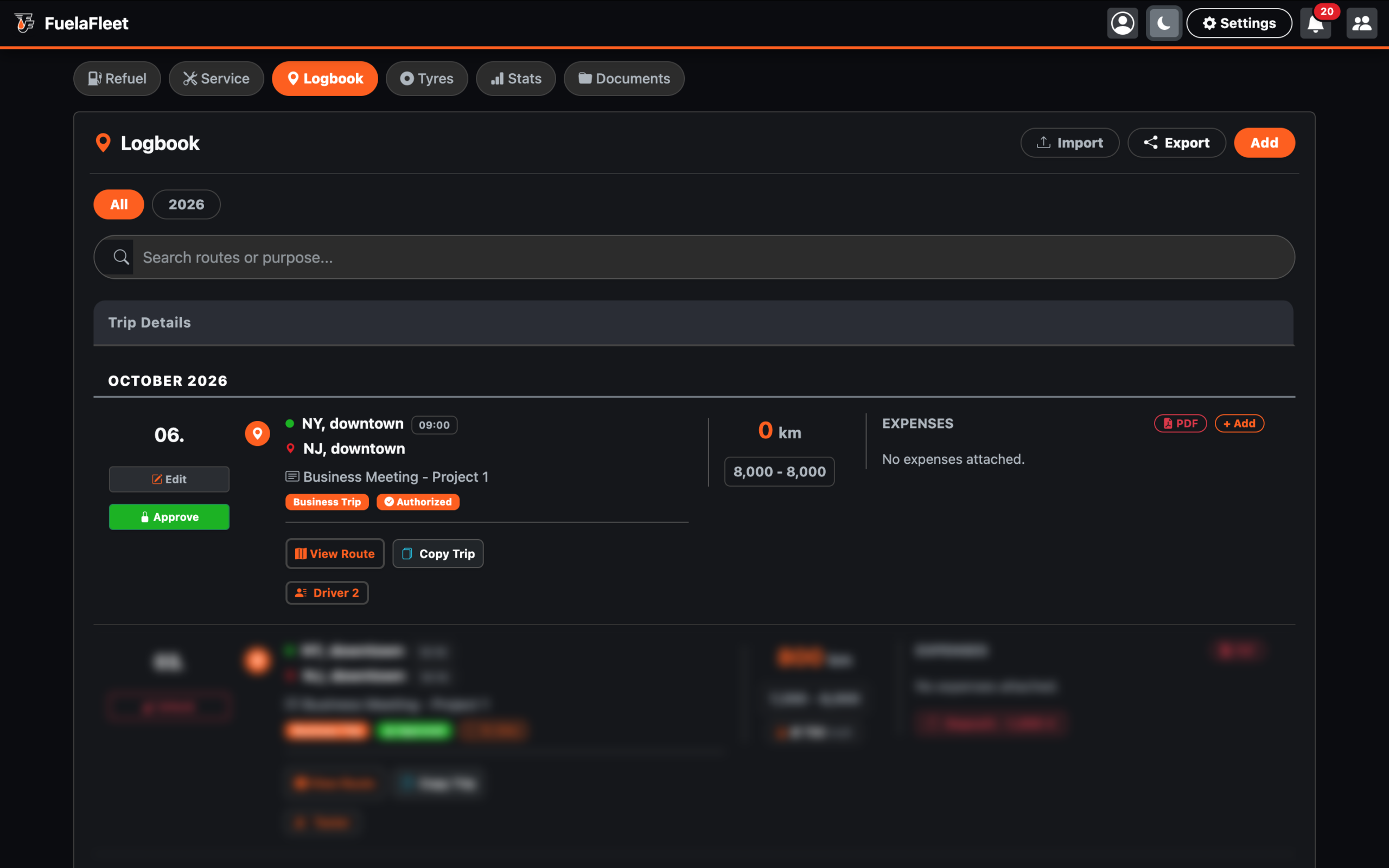
When the trip is end, Admin or Team manager reviews the receipts. They click the green button “Approve”, pop-up window is dipslayed, click OK.
- When everythins is OK, the driver will see pop-up window: “Lock this trip and approve expenses permanently?”
- When someting is missing, error message is displayed: “Cannot approve! Trip is missing End KM, End Time, or End Address.”
The driver must add these missing information. After success, the driver will see: “Trip updated successfully.” Then the admin or manager can click the “Approve” button again. The app saves the Admin’s Name, Role, and Date again and generates a digital timestamp.
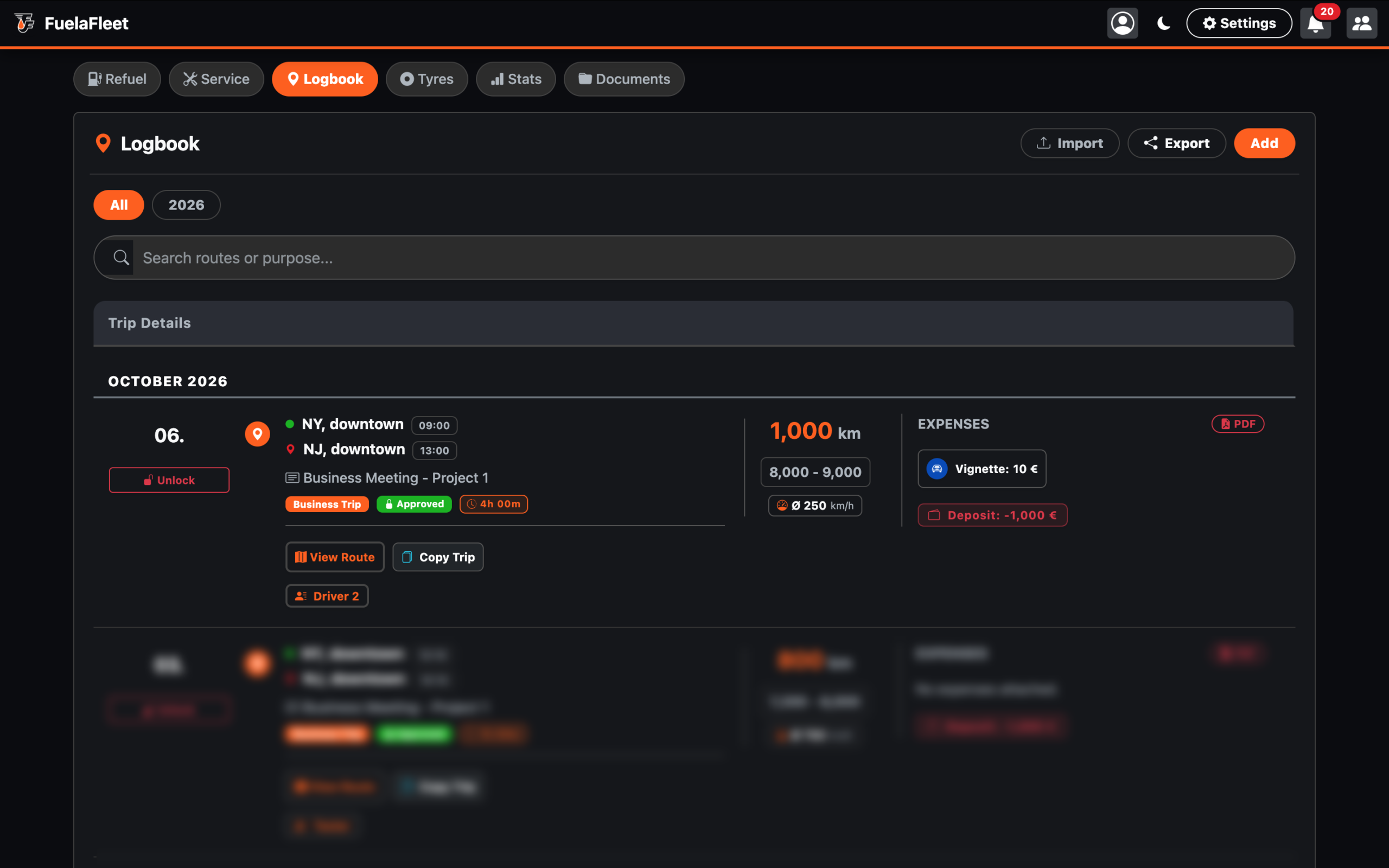
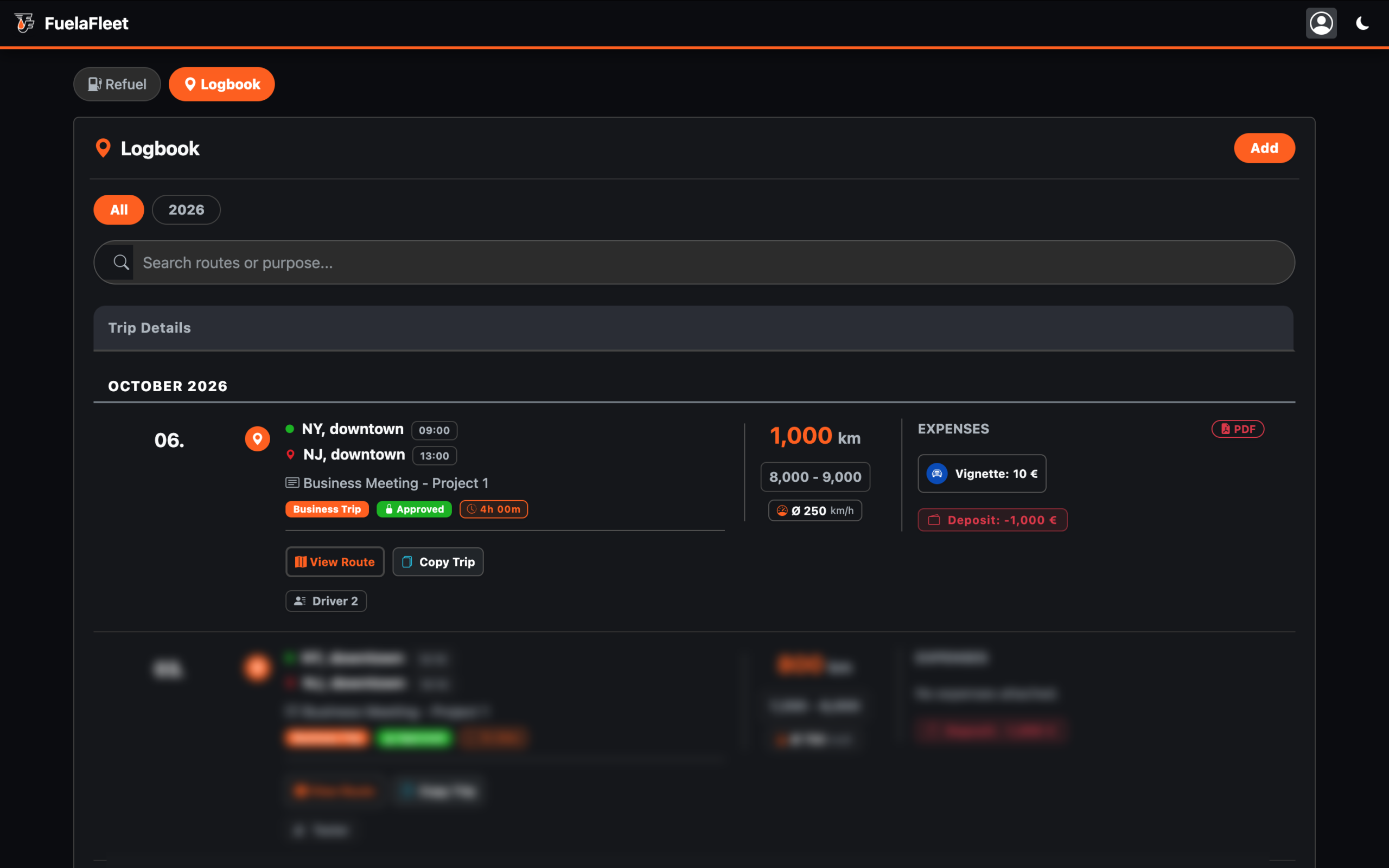
Once expenses are approved, the orange badge “Authorized” is change to green badge “Approved” with small lock icon and the trip is Locked. Drivers can no longer edit the distance or upload new receipts (preventing fraud after approval).
The entire approval process is now complete and locked.
Dashboard Update: A completed and approved trip is removed from the “Trips in progress” widget.
Unlock the Trip:
Only an administrator or manager can reopen the trip for editing by clicking the red “Unlock” button, which triggers the prompt: “Unlock this route for editing?” If the administrator clicks “Yes,” the message “Trip unlocked for editing” appears.
Once the driver finishes editing, the approval process must be performed again by the Admin or Team manager. The “Approved” digitalstamp will be updated.
Phase 4: "Digital Handshake" Workflow or How this looks on the PDF
Because we saved who clicked the buttons and when, you don’t need blank signature lines on the PDF anymore!
The entire approval process takes place electronically using “digital timestamps,” without the need for a traditional handwritten signature.
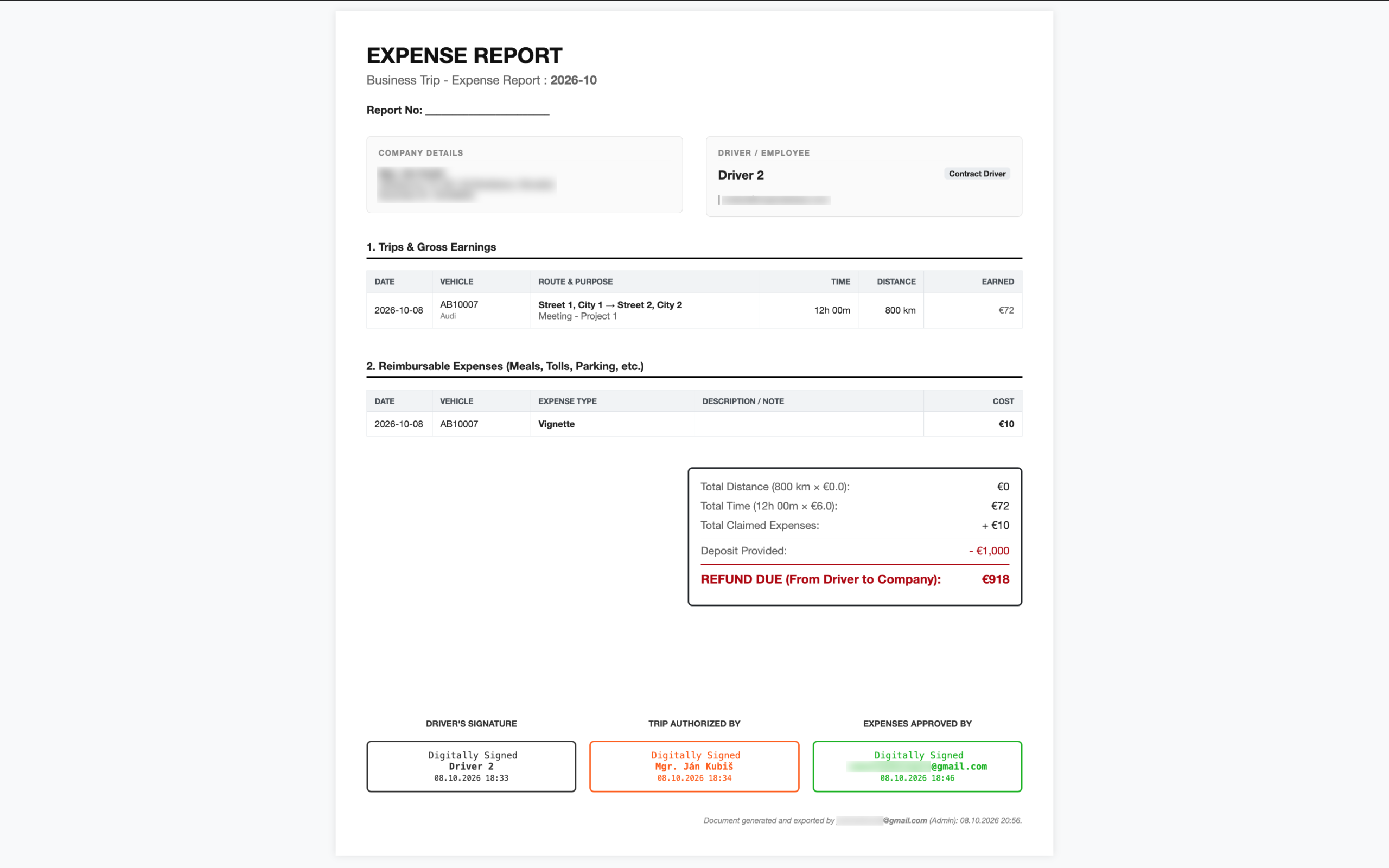
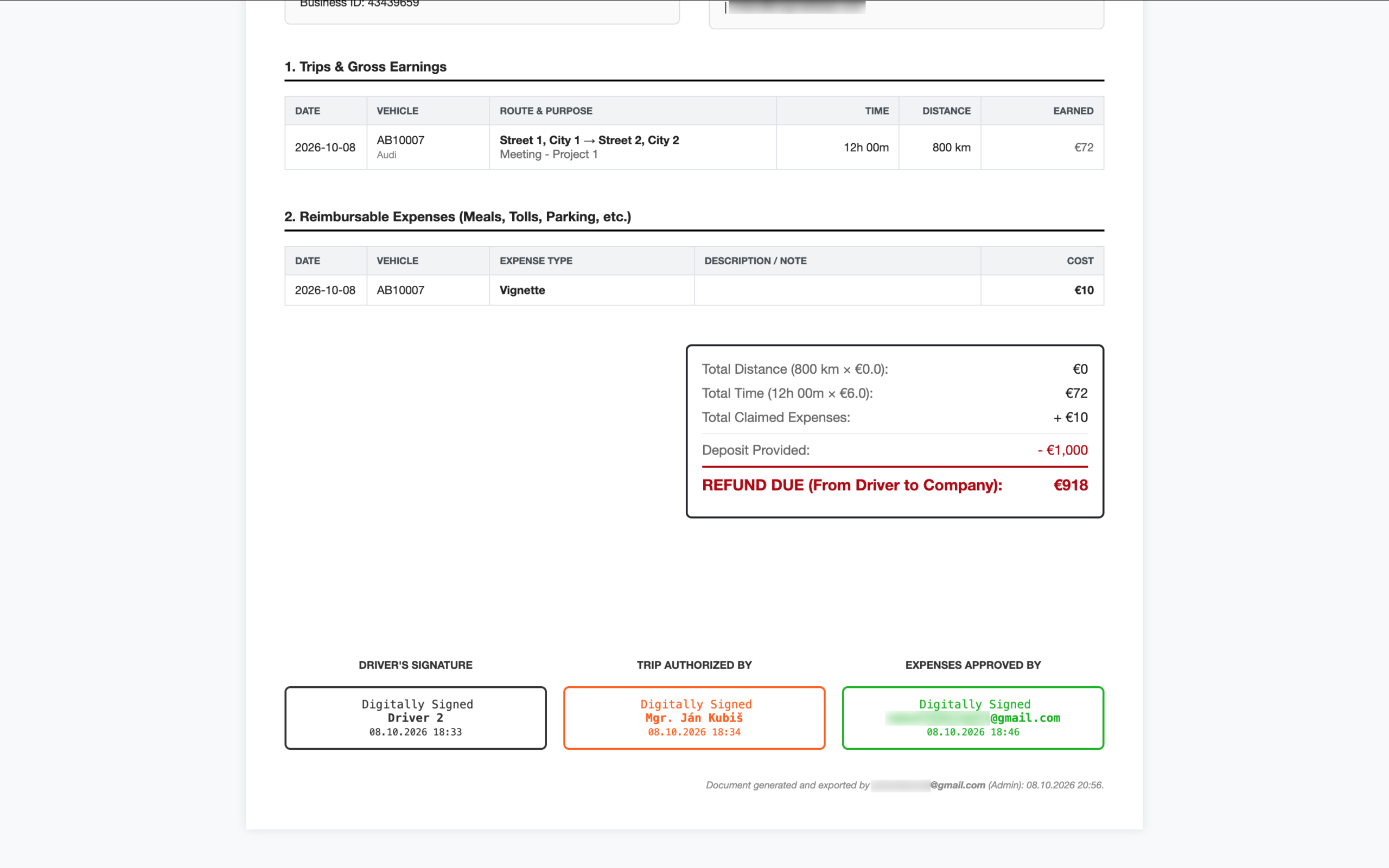
When a driver, administrator, or manager clicks the red PDF button in the trip row, the system automatically generates the following digital timestamp:
Note: If an administrator or manager does not have a “driver card” set up in the application, the email address will be displayed instead of the name in the digital timestamp.
The email address and job title of the person who generated the document, along with a time stamp, are always displayed at the bottom of the PDF document. The digital timestamp updates every time the PDF is generated!
Example:
Document generated and exported by email@email.com (Admin): 08.10.2026 20:56.
This creates a 100% bulletproof, tamper-evident audit trail that any auditor or accountant will accept because the timestamps are logged directly in the database.
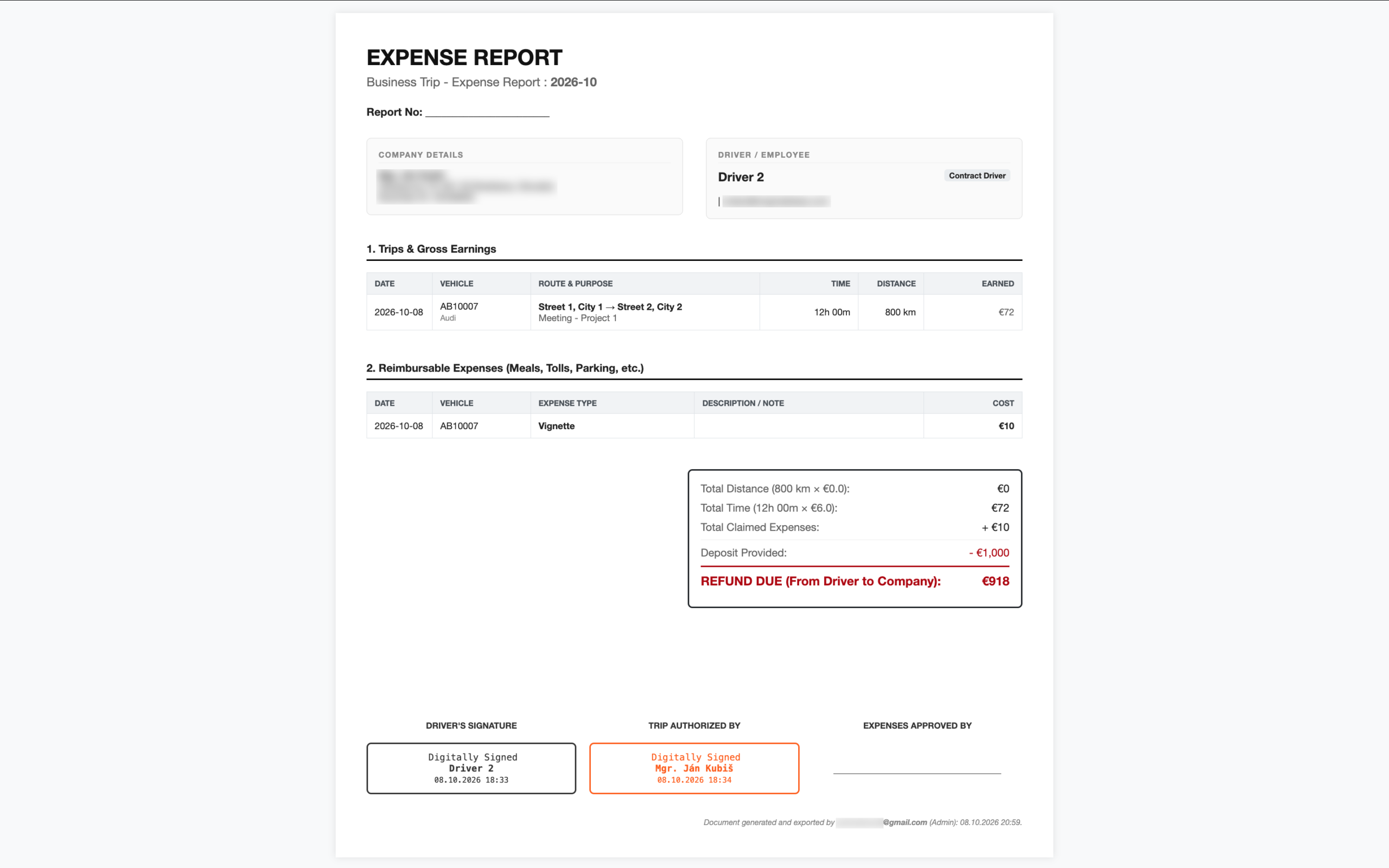
Missing digital timestamp
When a driver or manager exports an Expense report to PDF but the final step “Approve” is missing, the digital time stamp “Expenses approved by” is also missing. Expenses must be approved within the application before being exported to PDF format. This concludes the entire business trip approval process, as it incorporates all necessary digital signatures.
It is important to have digital time stamps recorded for every trip, as they are automatically transferred to the logbook along with the last trip entry.