How to copy a Business trip on desktop
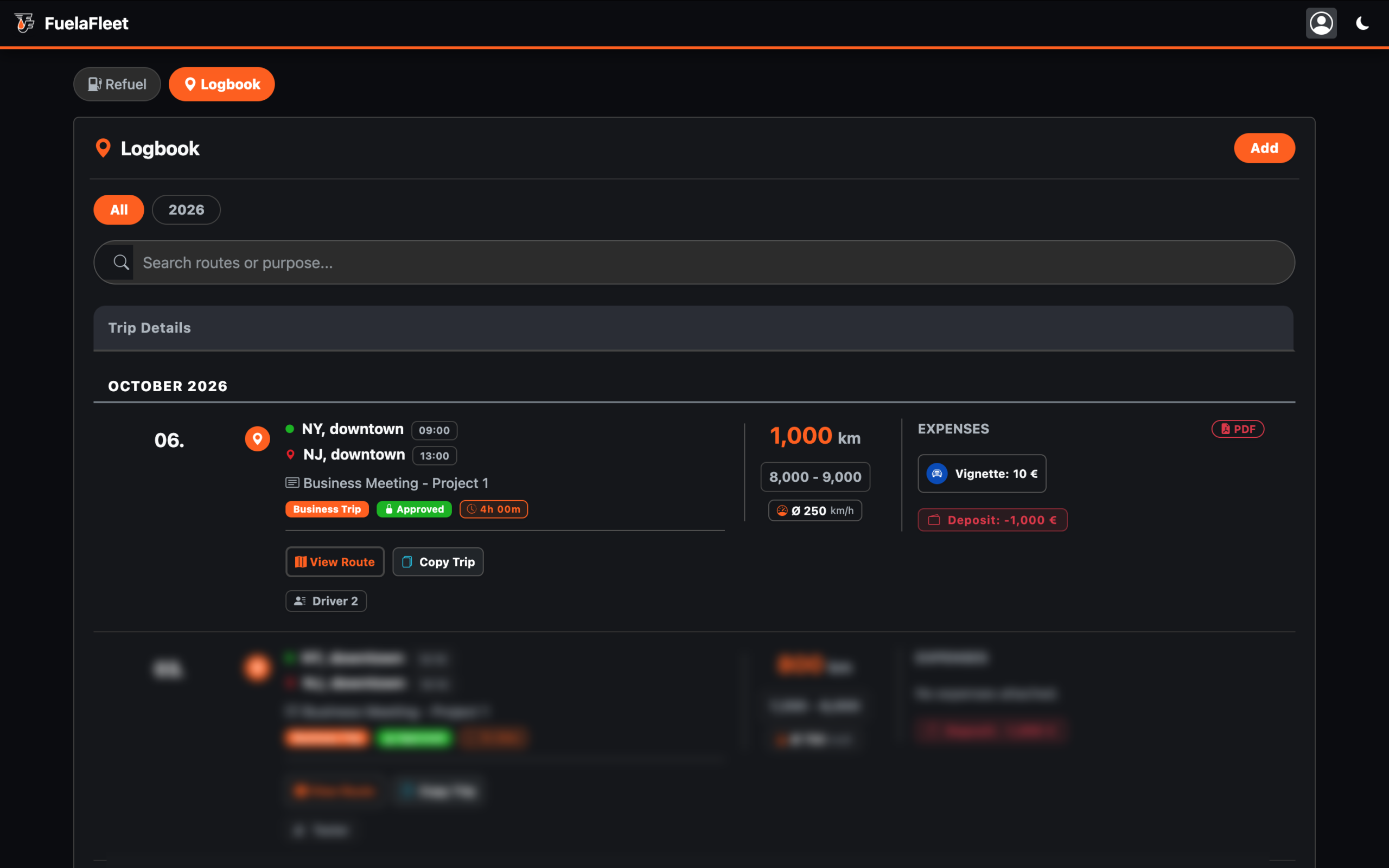
Open your trip log on your computer; for each trip, you will find a “Copy trip” button. Clicking it automatically creates a new entry, copying the start and end addresses, purpose, payroll rates and trip type from the previous entry. The trip start time is set to the moment you click the “Copy trip” button. The starting mileage is based on the last entry in the application.
Note: If the payroll was already approved for the actual month, you will see this modal window: “Cannot add trip: The payroll for this month is already approved and locked!”
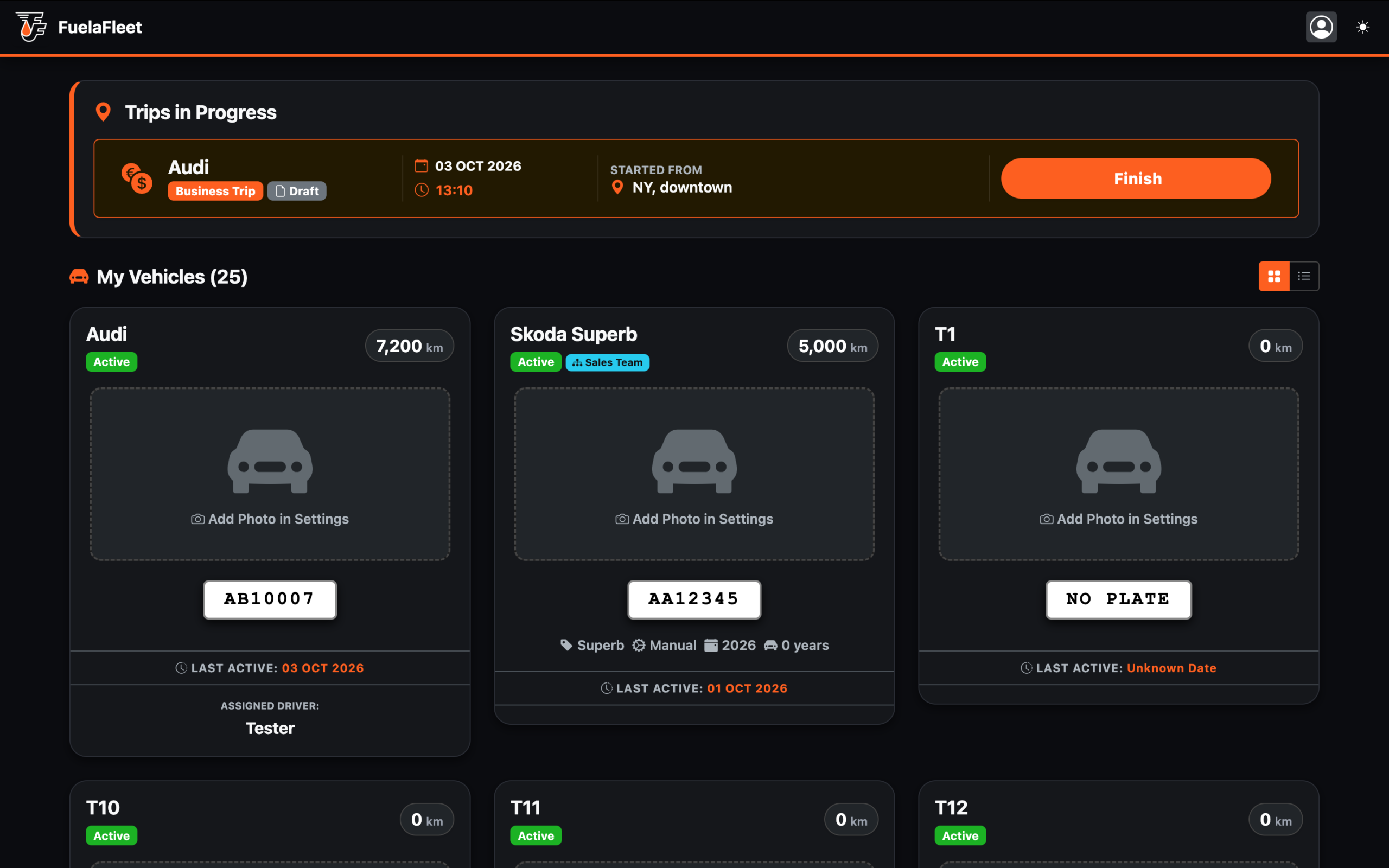
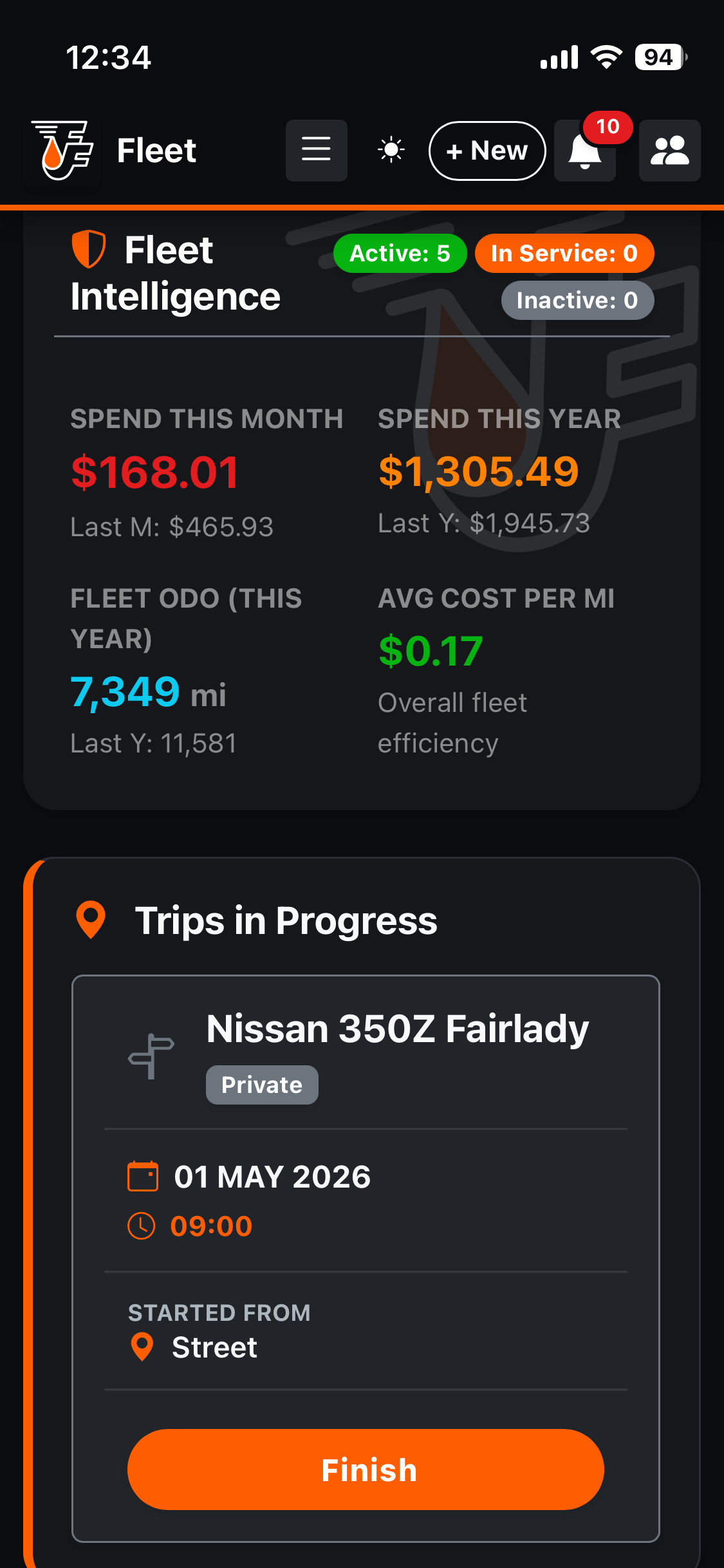
When you create a new business trip, it appears on the “Dashboard” as an “Trips in progess trip.” Upon arrival at the destination, simply click “Finish” and provide any missing details.
How to copy a Business trip on mobile phone
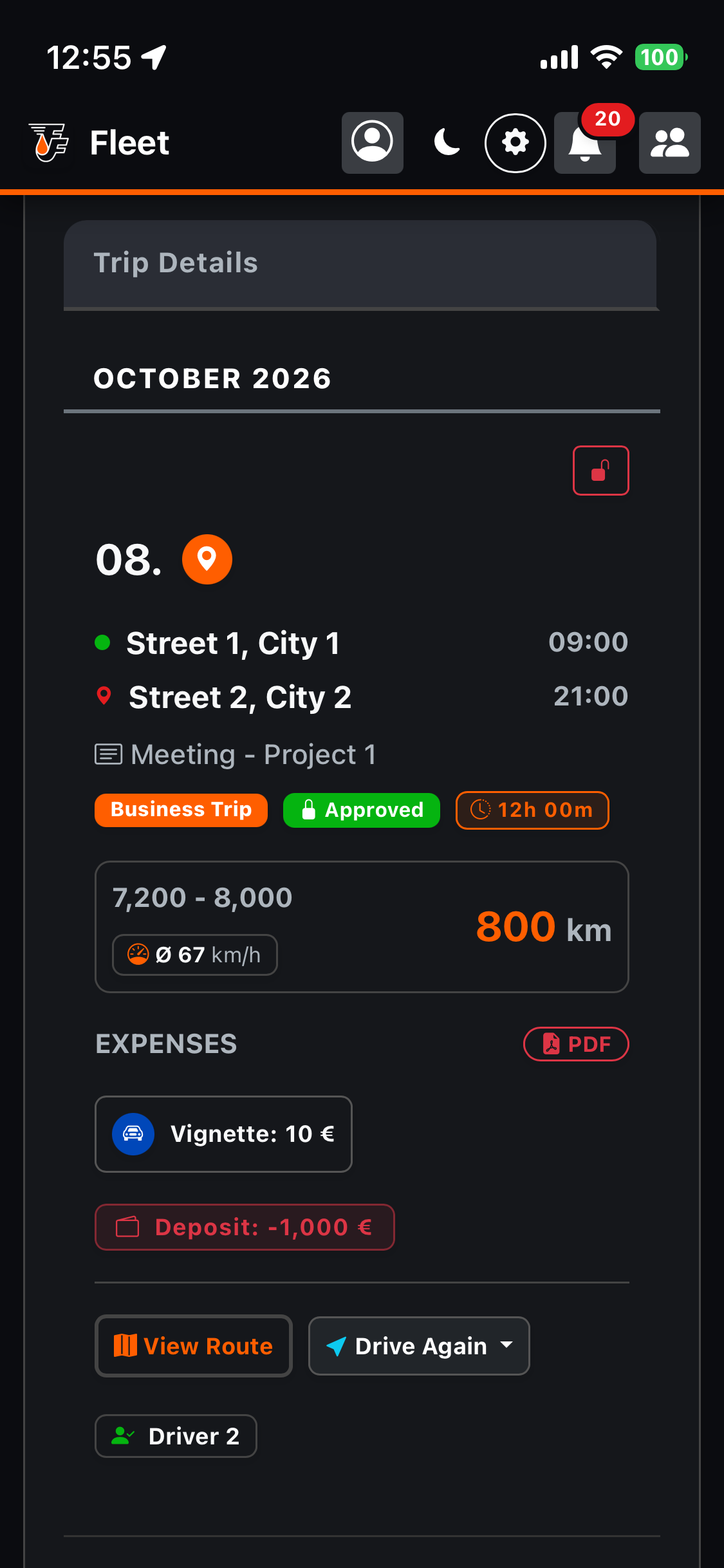
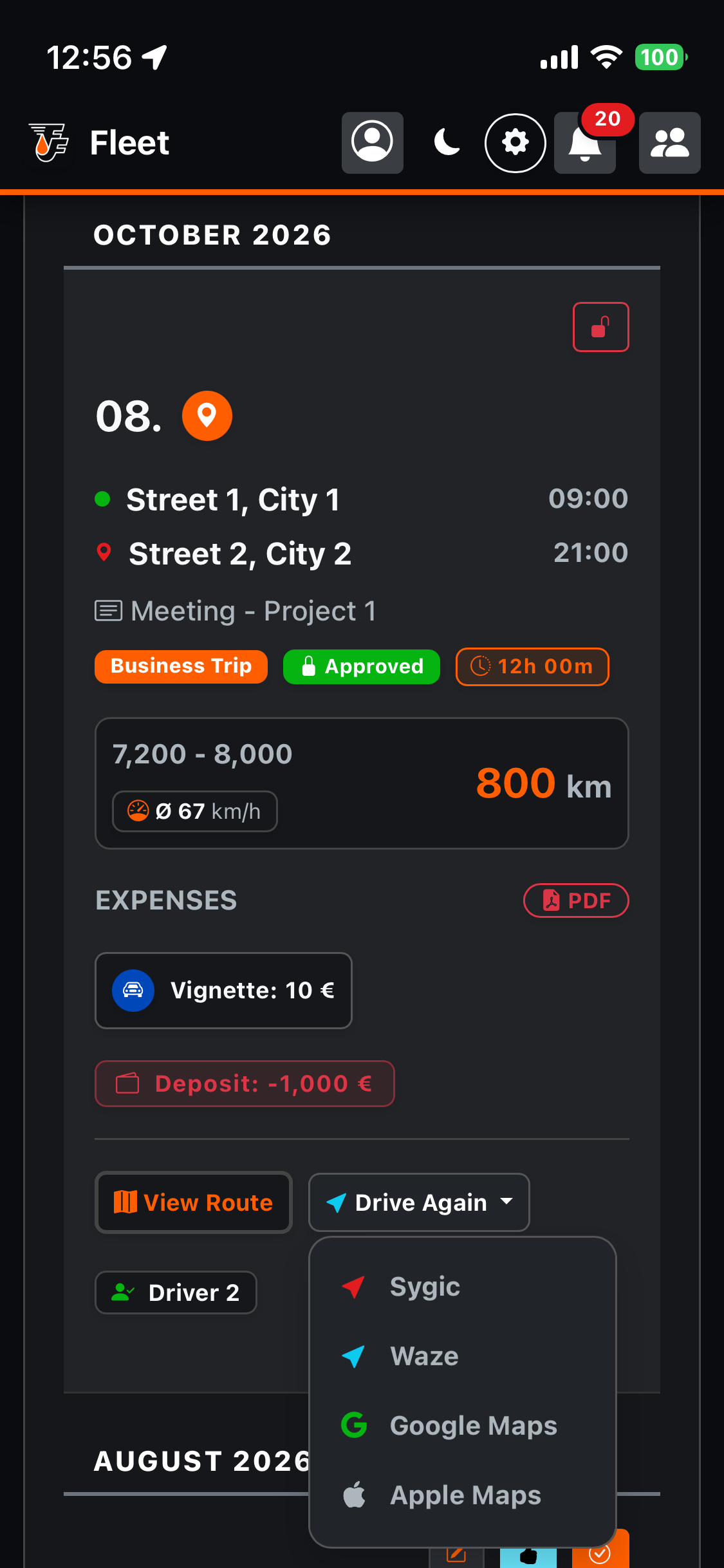
Open your trip log on your computer; for each trip, you will find a “Drive Again” button. Clicking this button opens a menu with navigation options. If you do not wish to use any of the suggested navigation options, simply go back. Clicking it also automatically creates a new entry, copying the start and end addresses, purpose, payroll rates and trip type from the previous entry. The trip start time is set at the moment you click the “Copy trip” button. The starting mileage is based on the last entry in the application.
Note: If the payroll was already approved for the actual month, you will see this modal window: “Cannot add trip: The payroll for this month is already approved and locked!”
When you create a new business trip, it appears on the “Dashboard” as an “Trips in progess trip.” Upon arrival at the destination, simply click “Finish” and provide any missing details.