Export to PDF or CSV
An admin, team manager, or accountant can export the Logbook in two formats: PDF or CSV. You can choose to export data for the entire year or for a specific month.
Tip: Multiple future trips can be created but only an administrator or manager can create a trip for a driver who needs to use a vehicle assigned to another driver.
At this stage, the trip has a grey badge: “Draft”.
Dashboard Update: This new trip will be clearly visible in the “Trips in Progress” widget, marked as “Draft”.
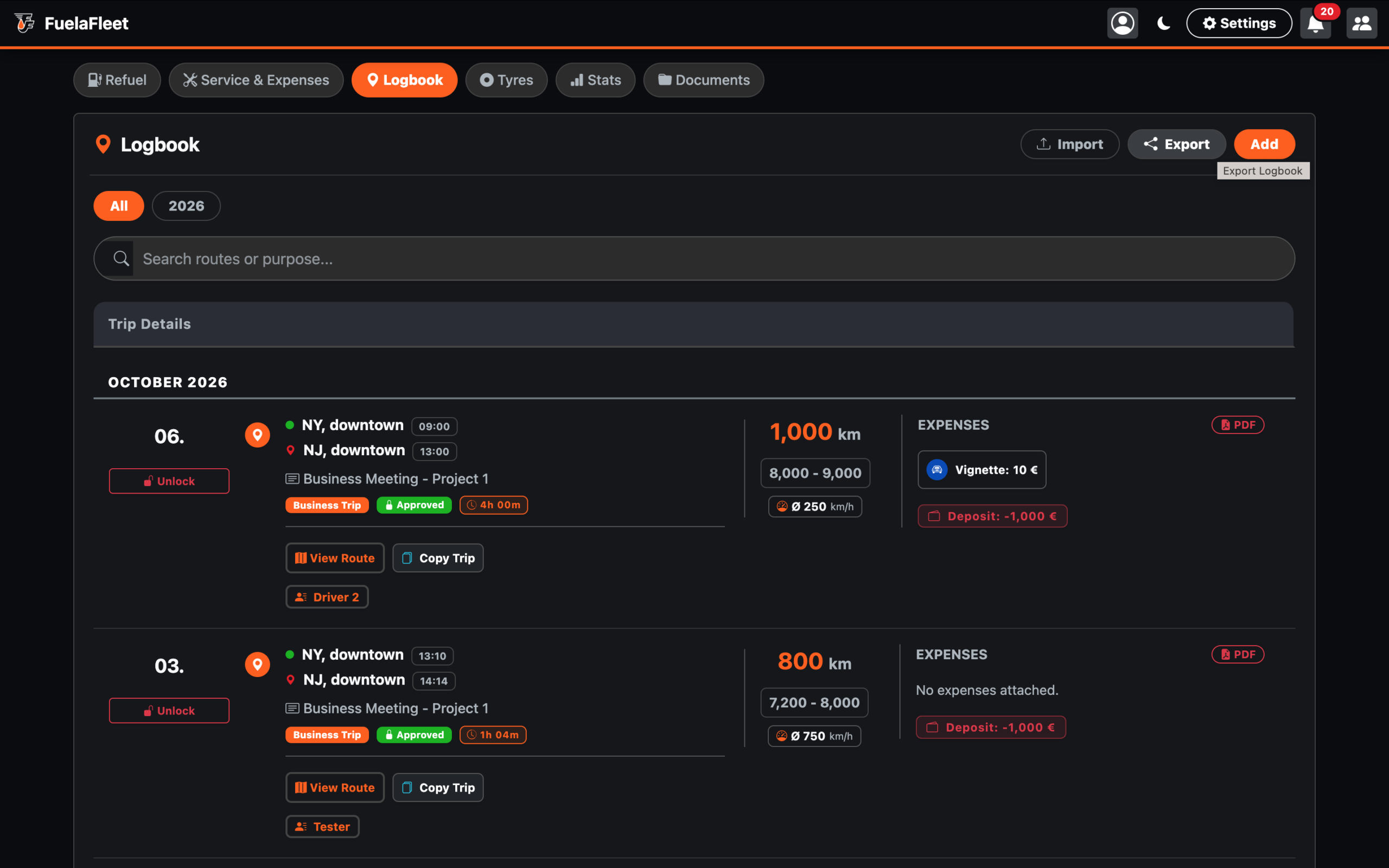
Step 1 - Export button
Click the "Export" button for PDF or CSV file.
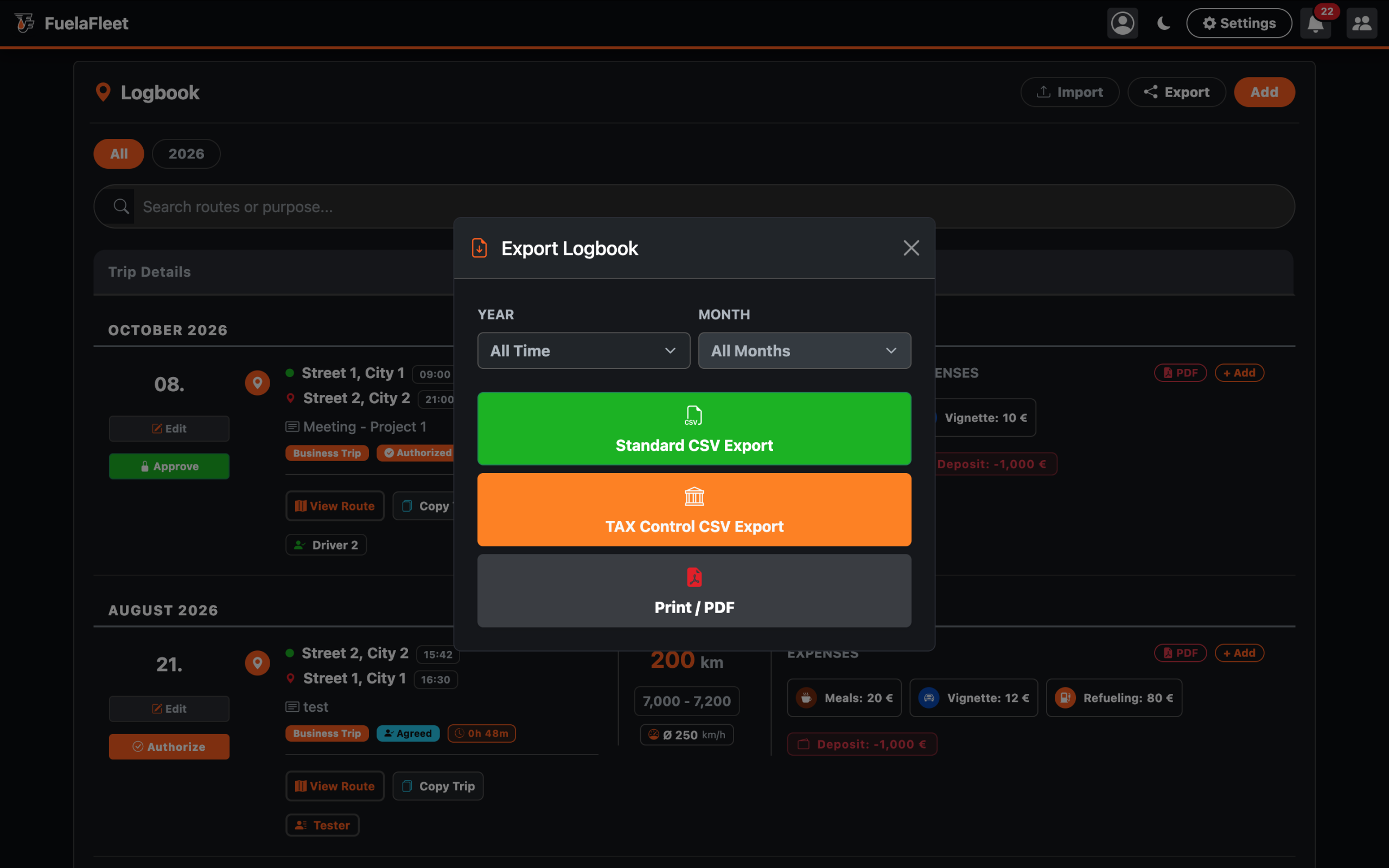
Step 2 - Choose a format
Select the CSV or PDF format and choose whether you need an annual or monthly export.
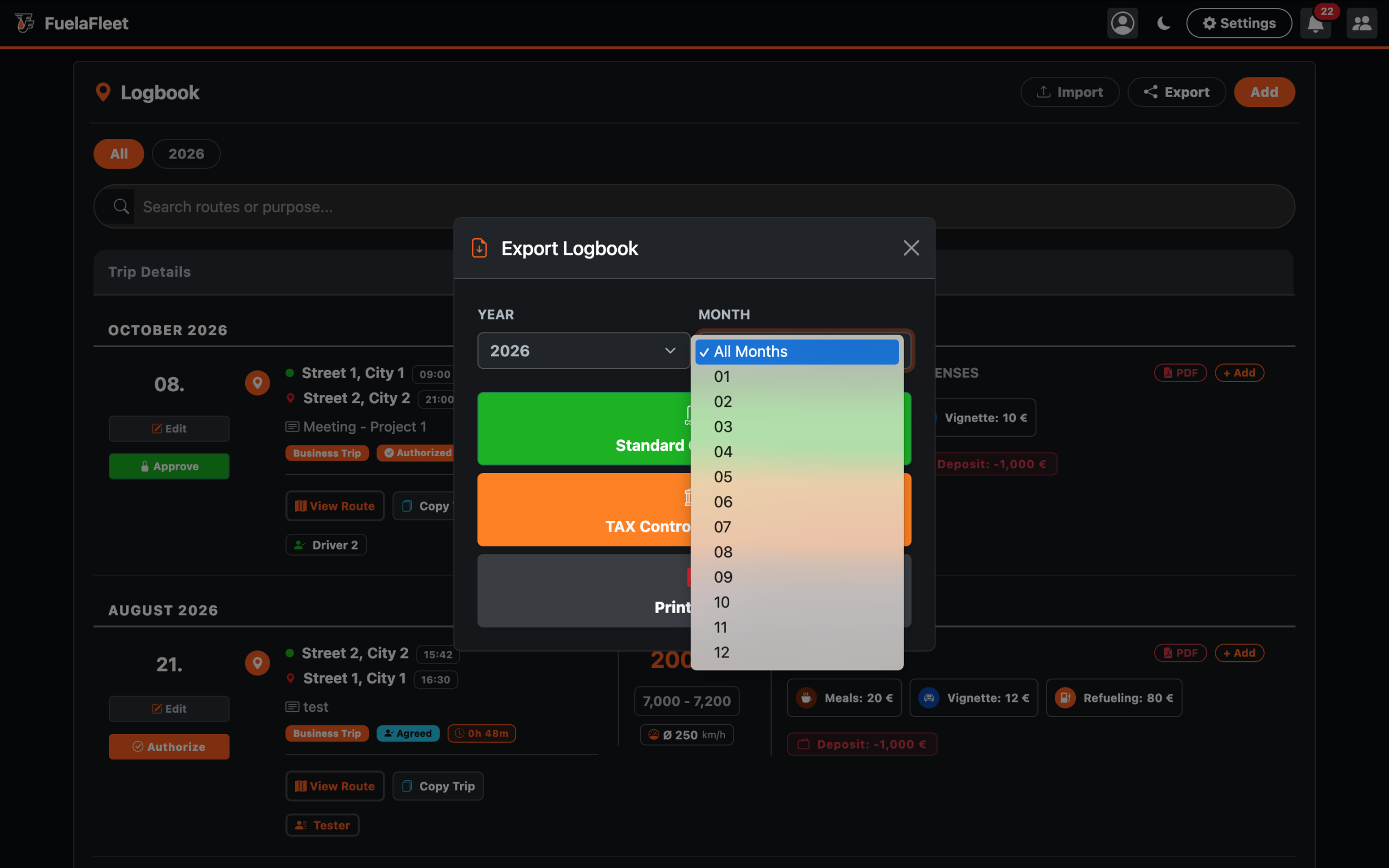
Step 3 - Monthly or yearly export
Select the monthly or full history from the drop-down list.
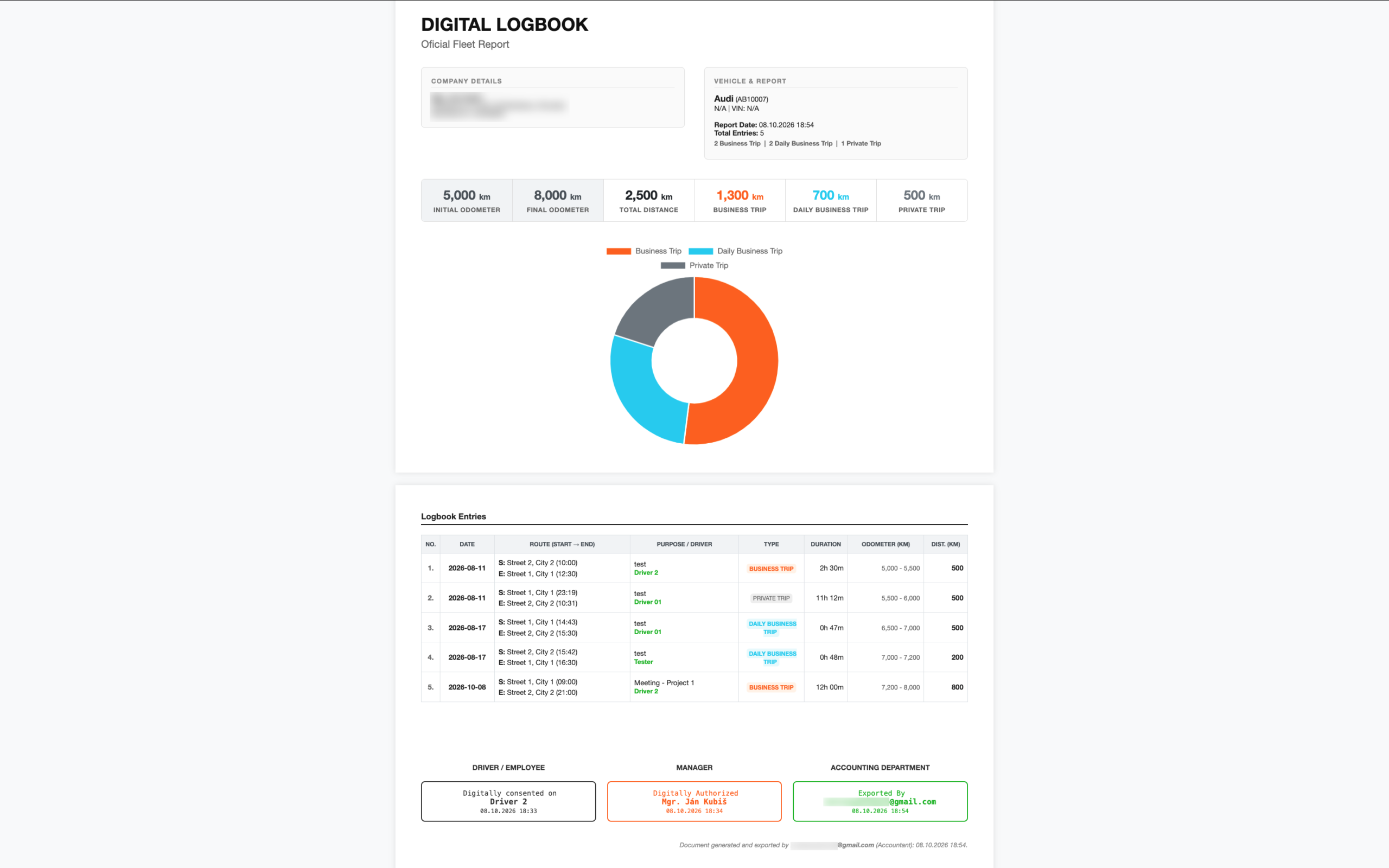
Step 4 - PDF export
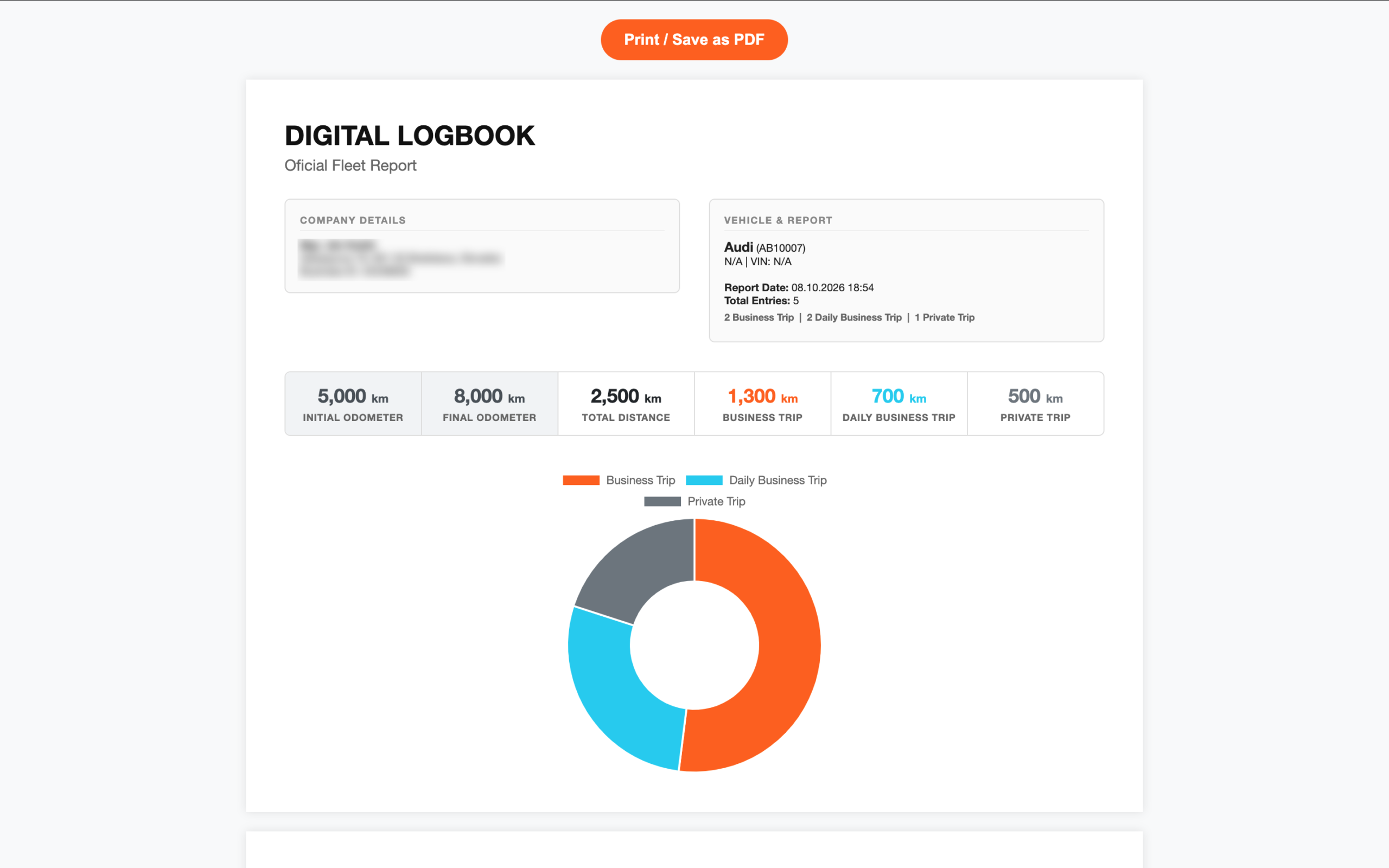
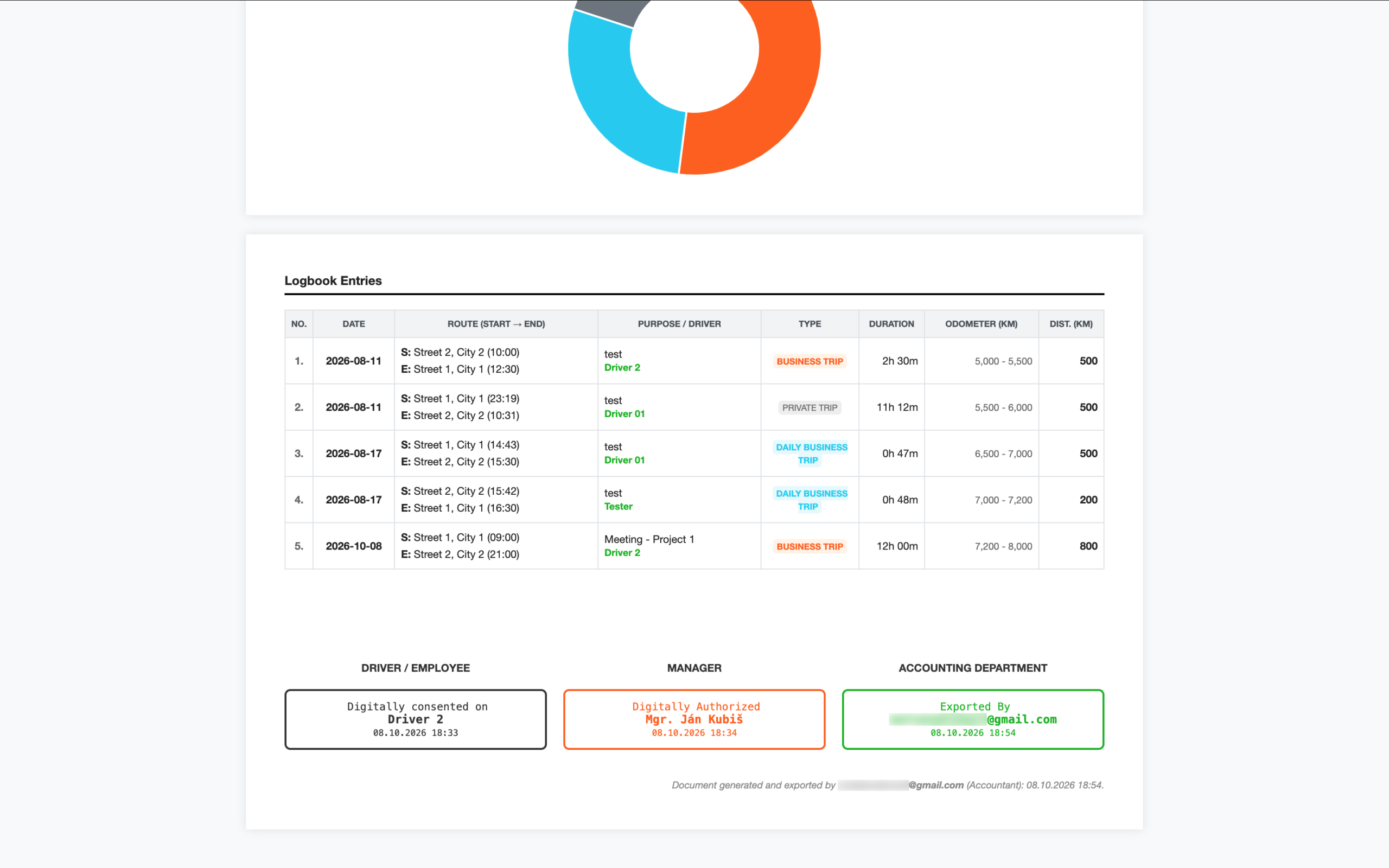
All trips are clearly organized in the digital logbook.
Step 5 - CSV export
If you need to export to CSV, select the CSV format. You will get an editable version for your accountant or the audit authority.
The CSV format provides clear, easy-to-use output for further processing. If you need to import trips into the logbook, please follow this manual “How to import Logbook from another application using a CSV file.”
Step 6 - Digital time stamp
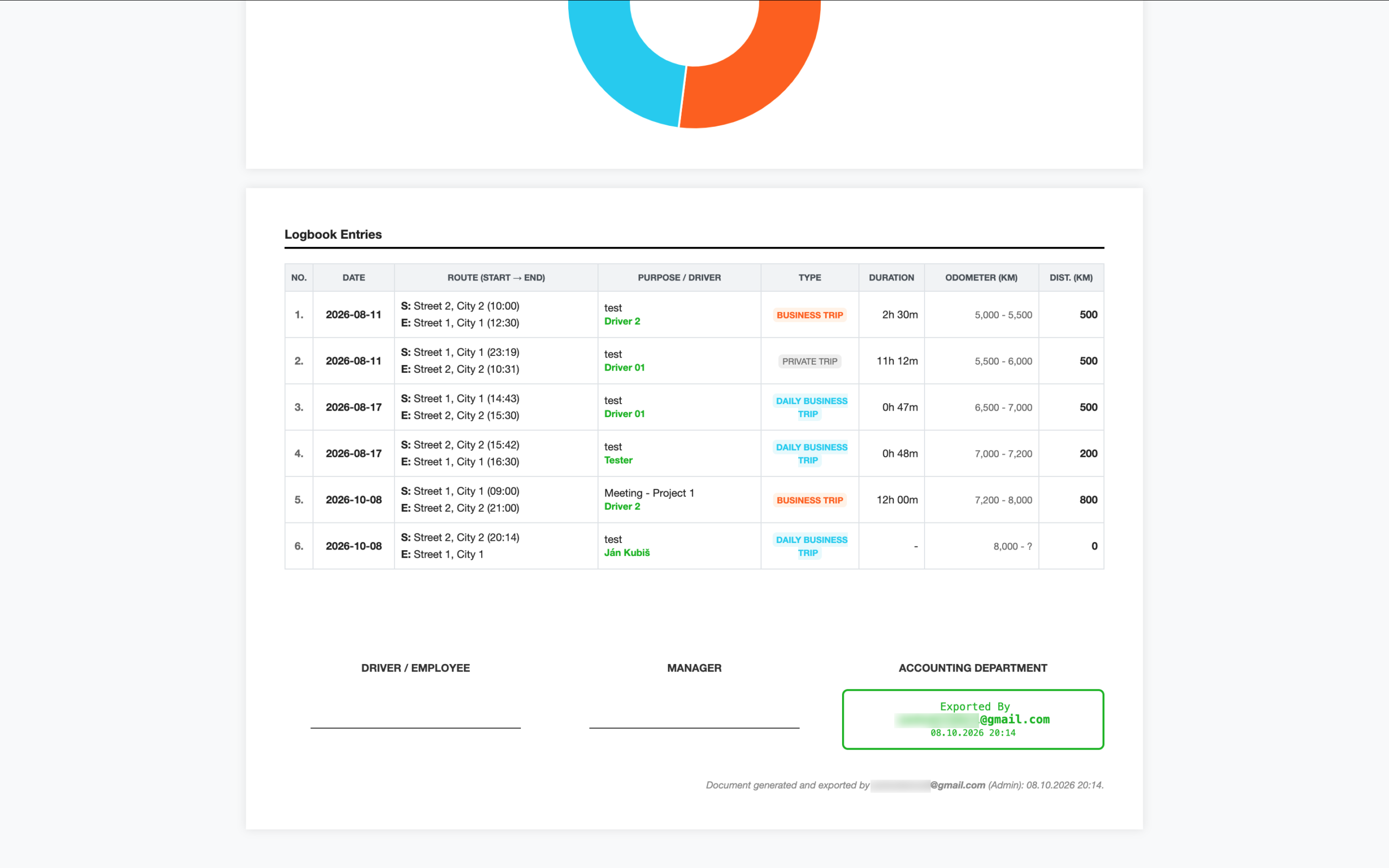
Because we saved who clicked the buttons and when, you don’t need blank signature lines on the PDF anymore!
The entire approval process takes place electronically using “digital timestamps” without the need for a traditional handwritten signature.
When an administrator, manager or accountant exports the logbook, the system automatically generates the following digital timestamp:
- Report date in the header: 08.10.2026 18:54
- Driver / Employee: Digitally consented on “Driver’s name” 08.10.2026 18:33 (This time and date are copied from the last trip the driver confirmed.)
- Manager: Digitally Authorized by “Admin’s name or Manager’s name or email” 08.10.2026 18:34 (This time and date are copied from the last trip authorized by the admin or manager.)
- Accounting Department: Exported by “Accountant’s email” 08.10.2026 18:54
Note: If the Logbook is exported by an Admin or Team manager instead of an Accountant, they are recorded as the “Account department” with admin’s or manager’s email. If an administrator or manager does not have a “driver card” set up in the application, the email address will be displayed instead of the name in the digital timestamp.
The email address and job title of the person who generated the document, along with a digital time stamp, are always displayed at the bottom of the PDF document. The digital timestamp updates every time the PDF is generated! The same time and date are saved for “Report date” and “Document generated and exported”.
Example:
Document generated and exported by email@email.com (Accountant): 08.10.2026 18:54.
This creates a 100% bulletproof, tamper-evident audit trail that any auditor or accountant will accept because the digital timestamp is logged directly in the database.
Missing digital time stamp
The time and date for the digital timestamp are taken from the last trip. However, if the driver has not yet confirmed the last trip and the manager has not authorized it, the digital timestamp is missing from the trip record and, consequently, from the logbook.
For digital timestamps to appear in the digital logbook, the driver must confirm the trip and the manager must approve it.