Phase 1: Hourly pay rate or Pay per km/mi rate
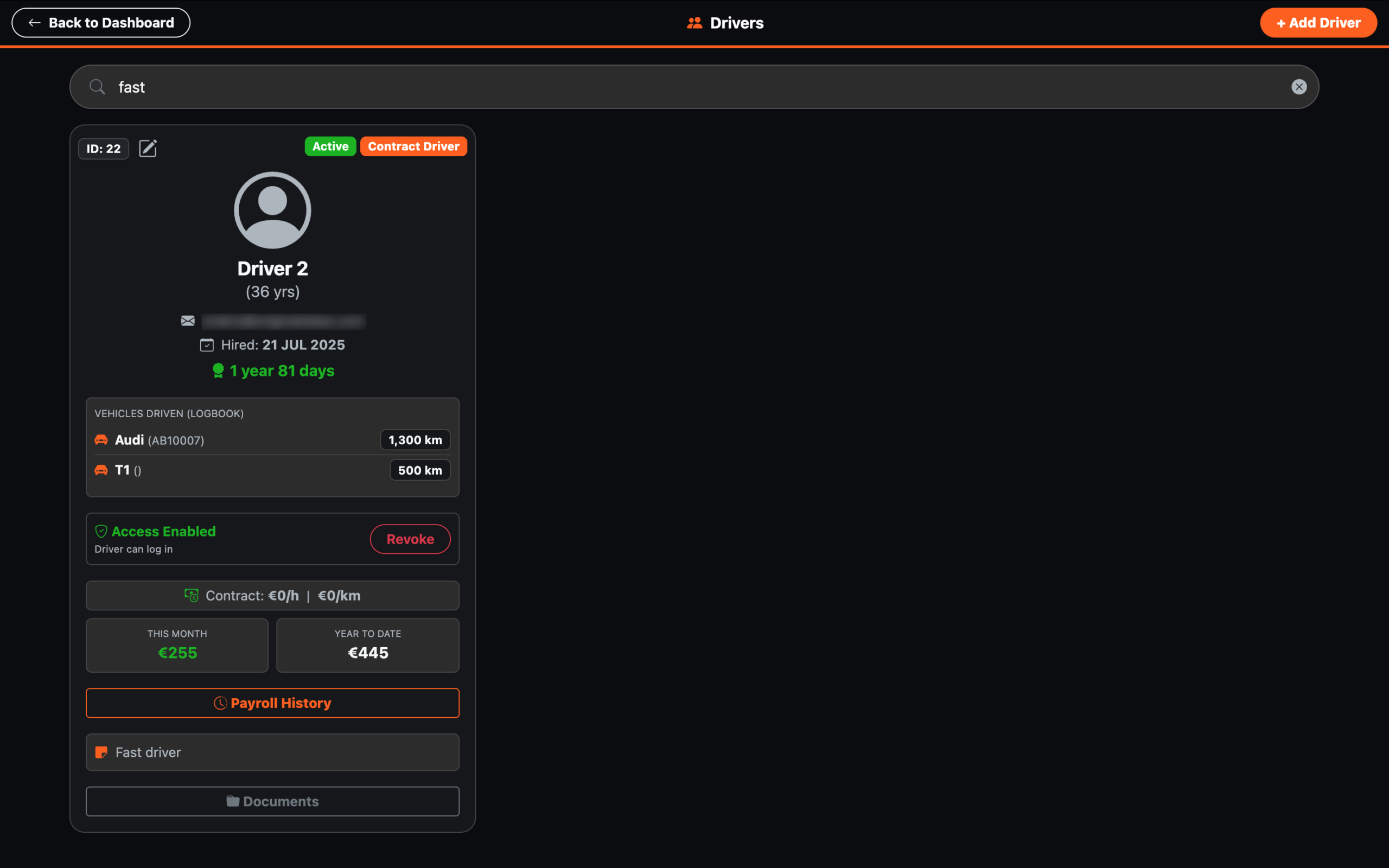
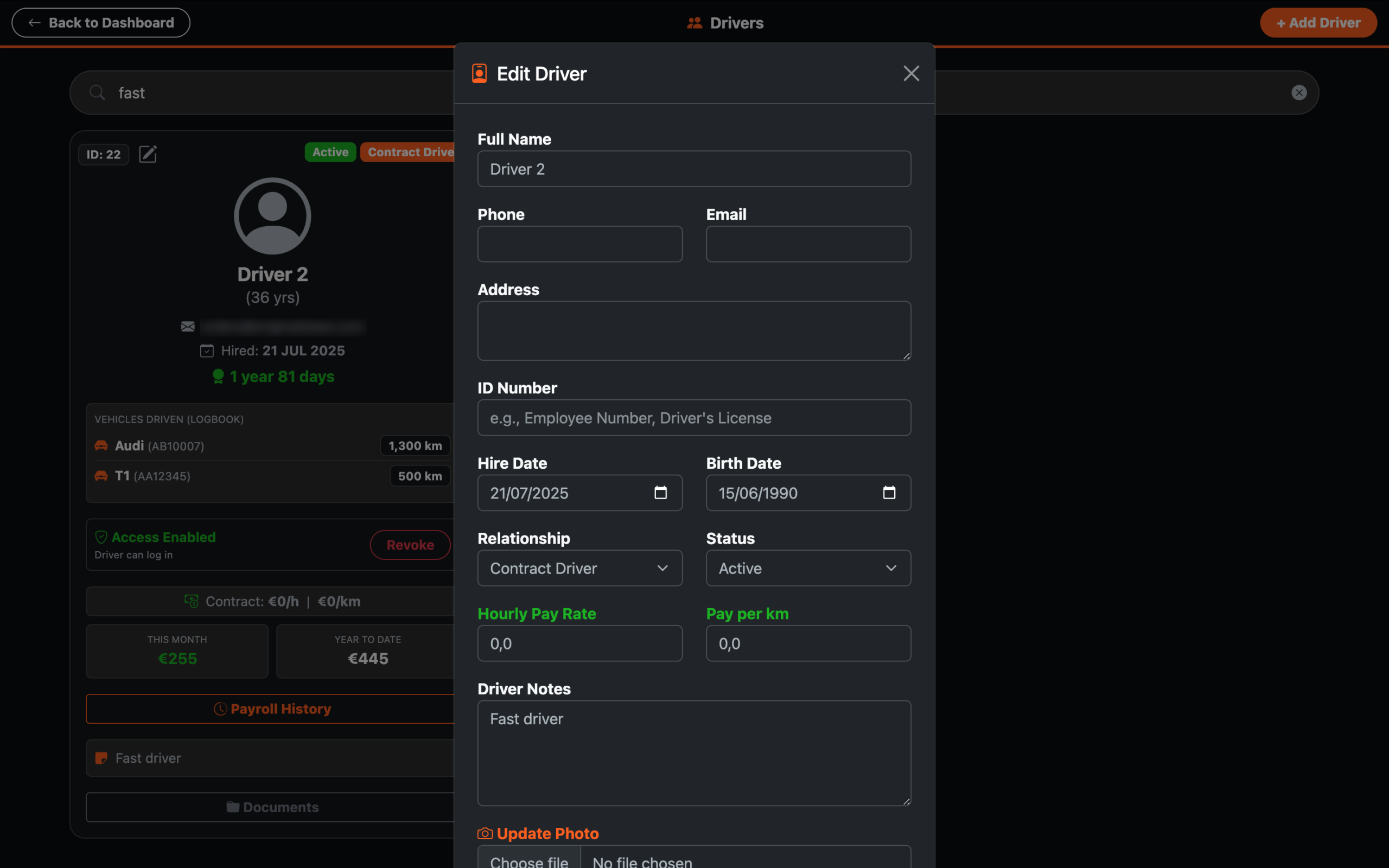
Before you start earning money as a driver, an administrator or manager must set a global rate in your driver card that will apply to all trips:
- hourly pay rate
- pay per-kilometer rate / pay per-mile rate
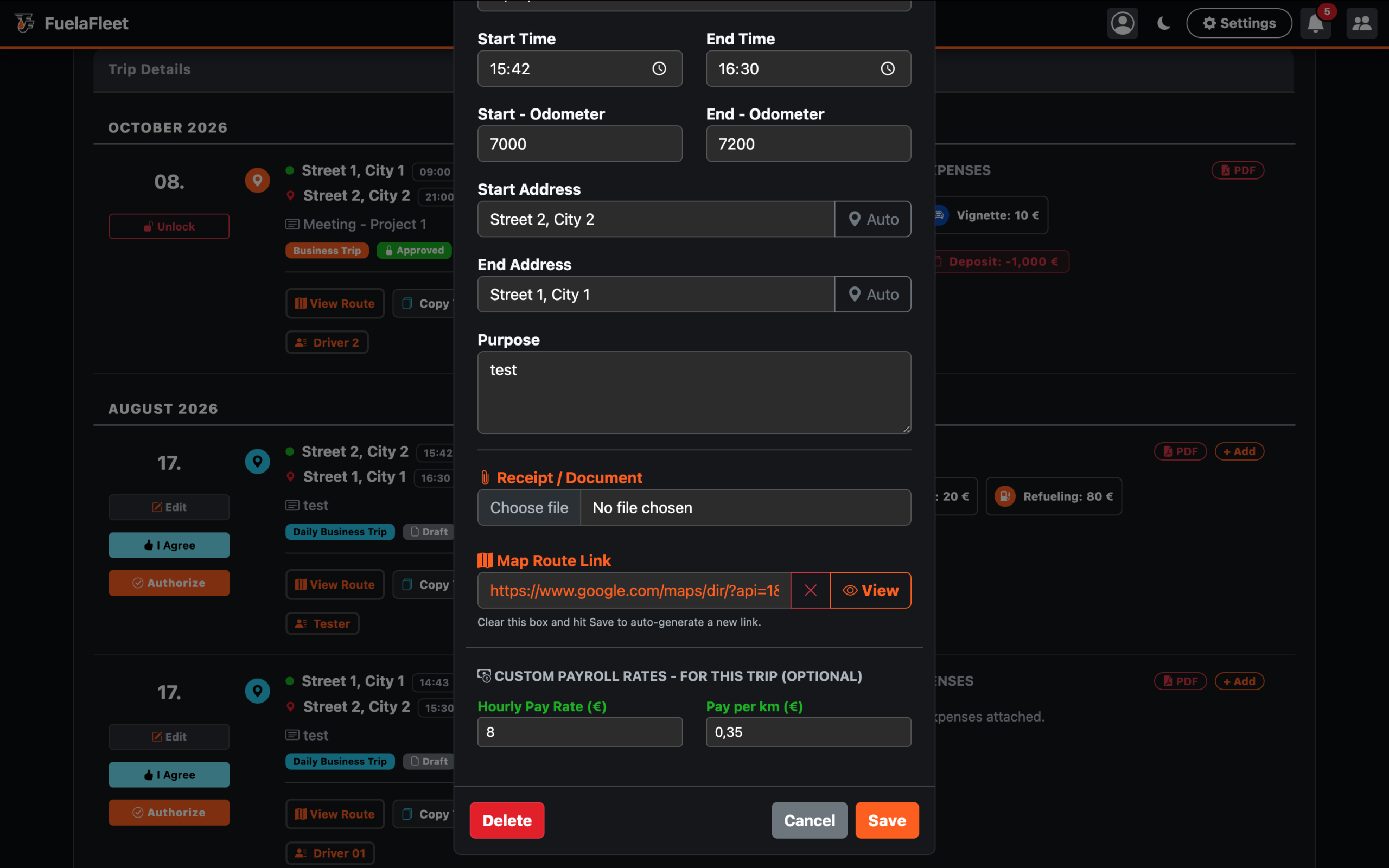
In addition to the global rate, you can set a separate rate for each trip. This rate will remain saved with the trip even if you change the global rate later!
You can find this option in the trip editing modal window under the heading “Custom payroll rates – for this trip (optional).”
Phase 2: How does a driver enter the payroll approval process?
All trips (business, daily, and private) are recorded in the logbook. Each trip must go through a complete approval process, confirmed by digital timestamps from both the driver and the manager. If a driver is not assigned to a specific vehicle—meaning they drive multiple vehicles—then all trips across all vehicles are included in the driver’s payroll.
Before an admin or accountant can print the PDF, the following approval process must be completed.
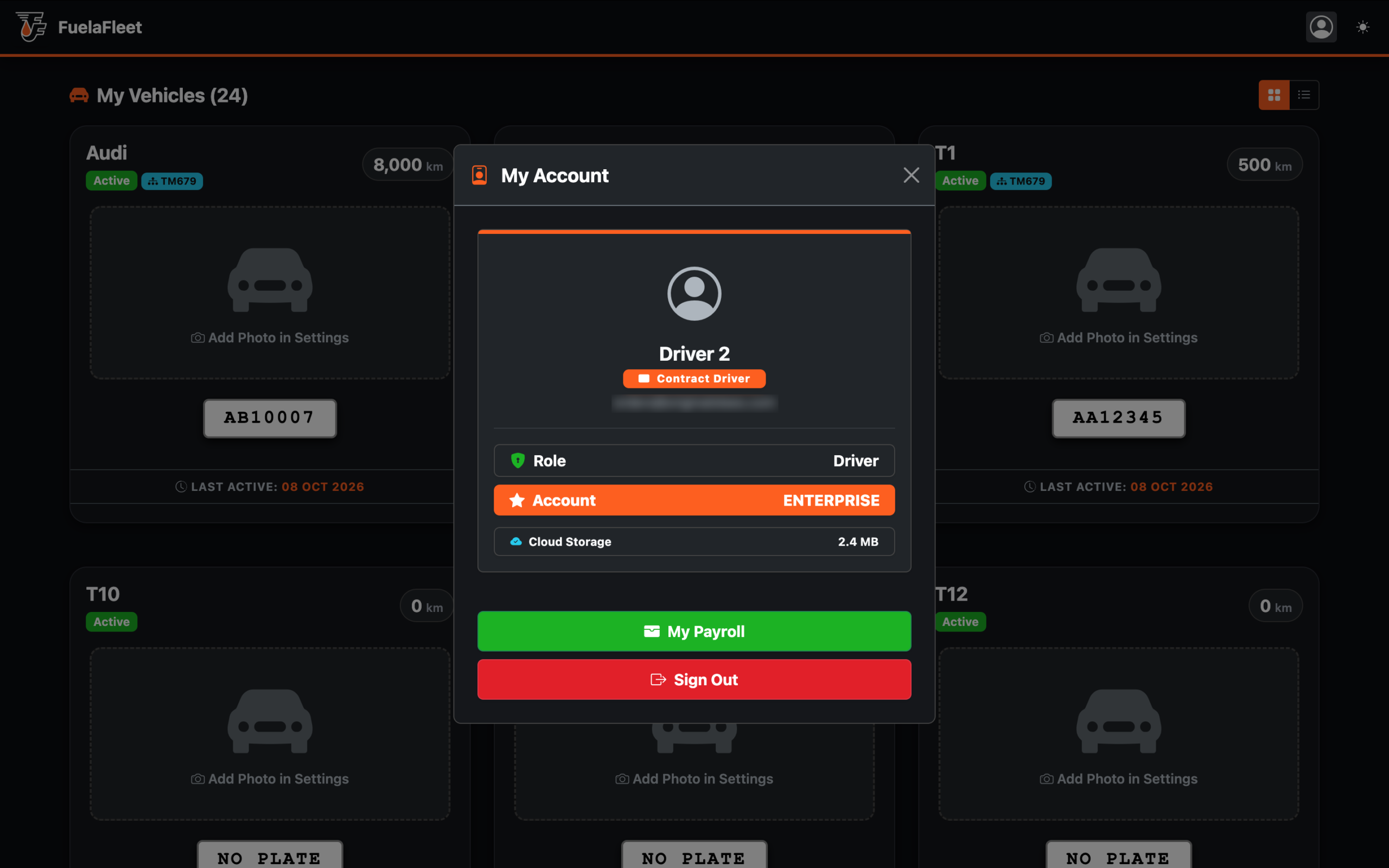
Step 1: My Payroll Button
The driver is logged into the app and clicks the “My Account” icon; a modal window appears with a green “My Payroll” button.
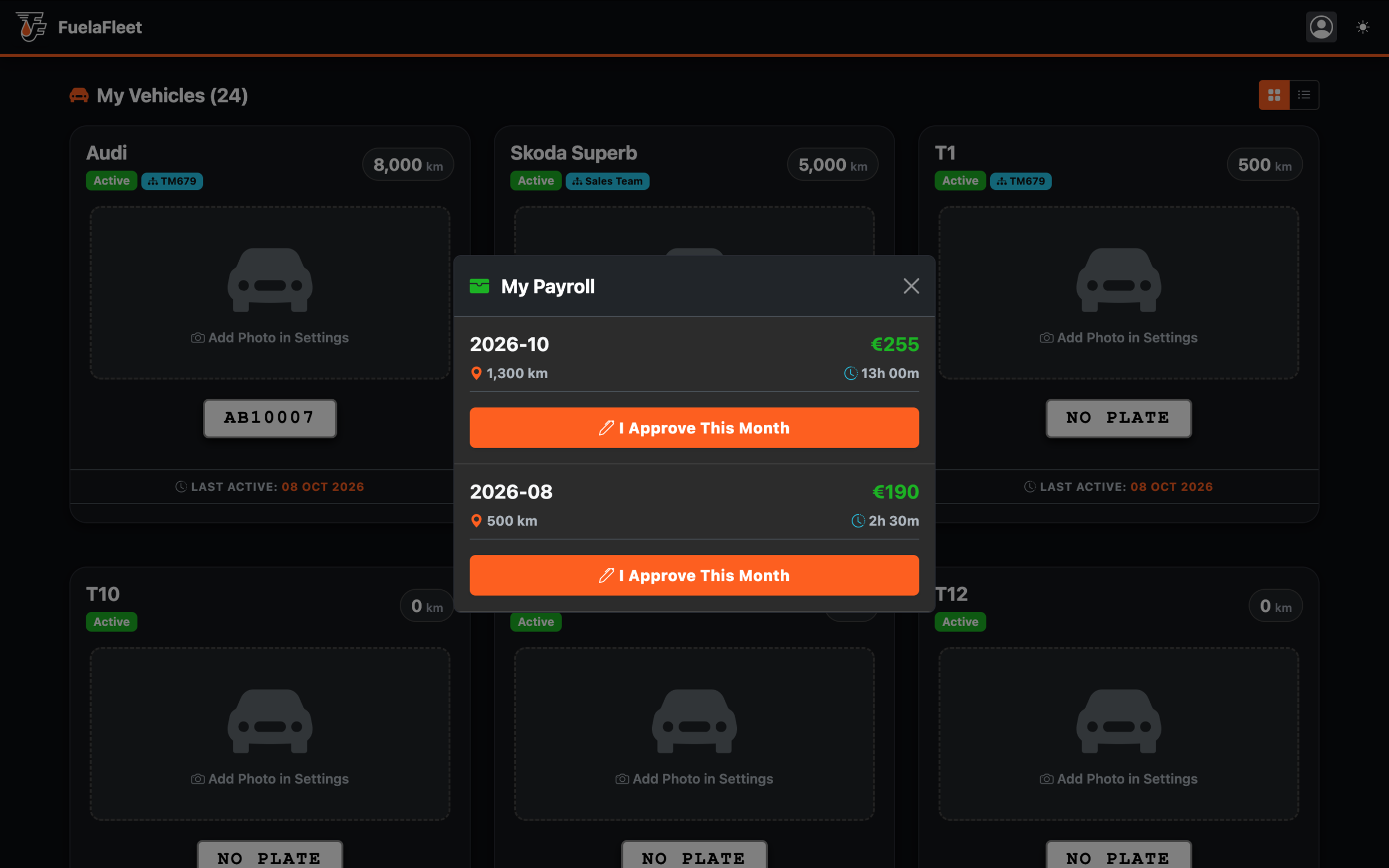
Step 2: I Approve This Month
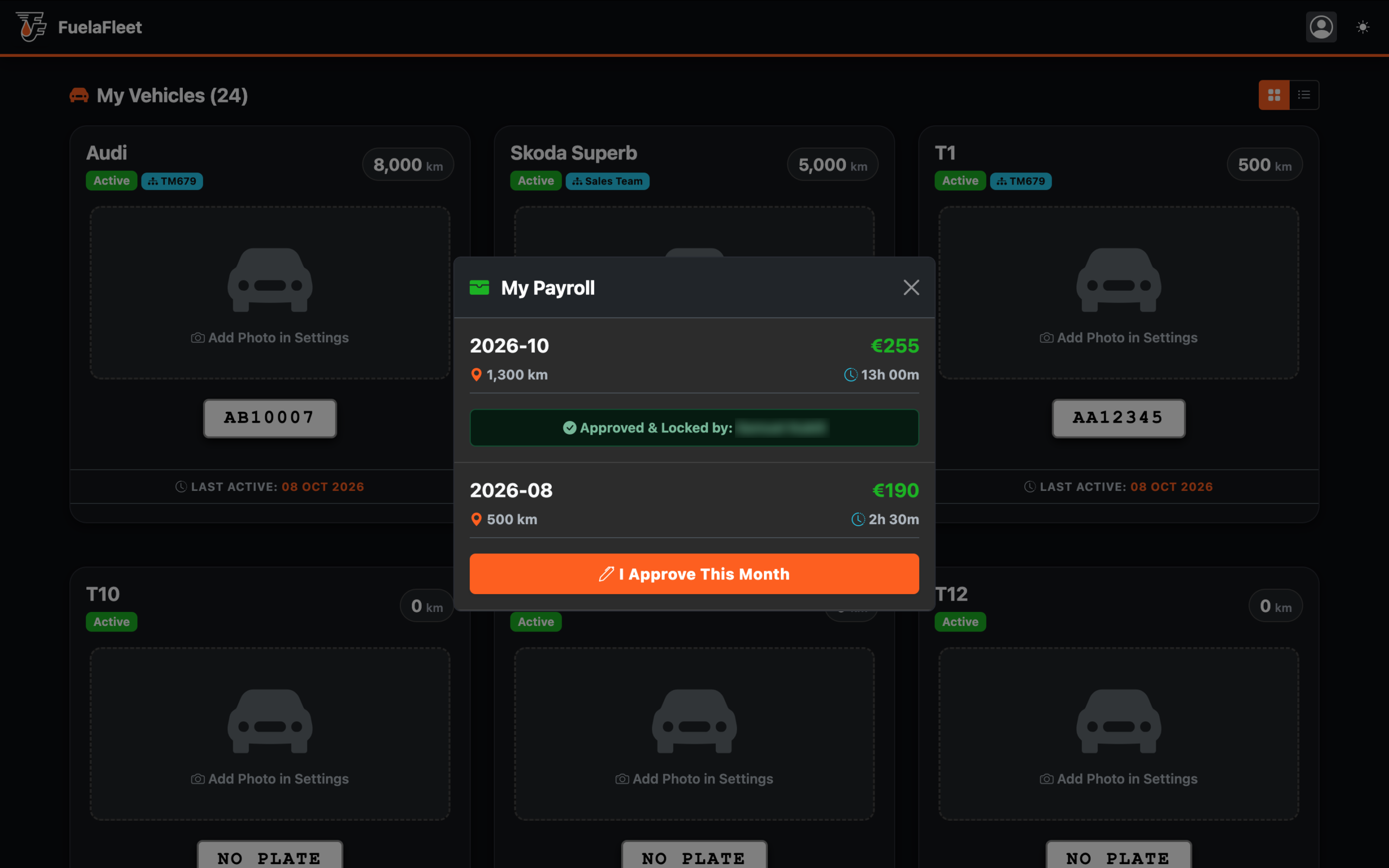
After clicking the green button, the “My Payroll” modal window appears, where the driver confirms the “mileage, time, and final pay” for each month.
If the driver agrees with everything (they can verify the data by reviewing all trips for the given month), they submit their approval by clicking the orange “I Approve This Month” button. This lets the manager know that the driver agrees with everything.
Tip for drivers: You have already approved the details for each trip. If you are unsure whether every trip is included in the total amount, simply check the data for all trips from the given month.
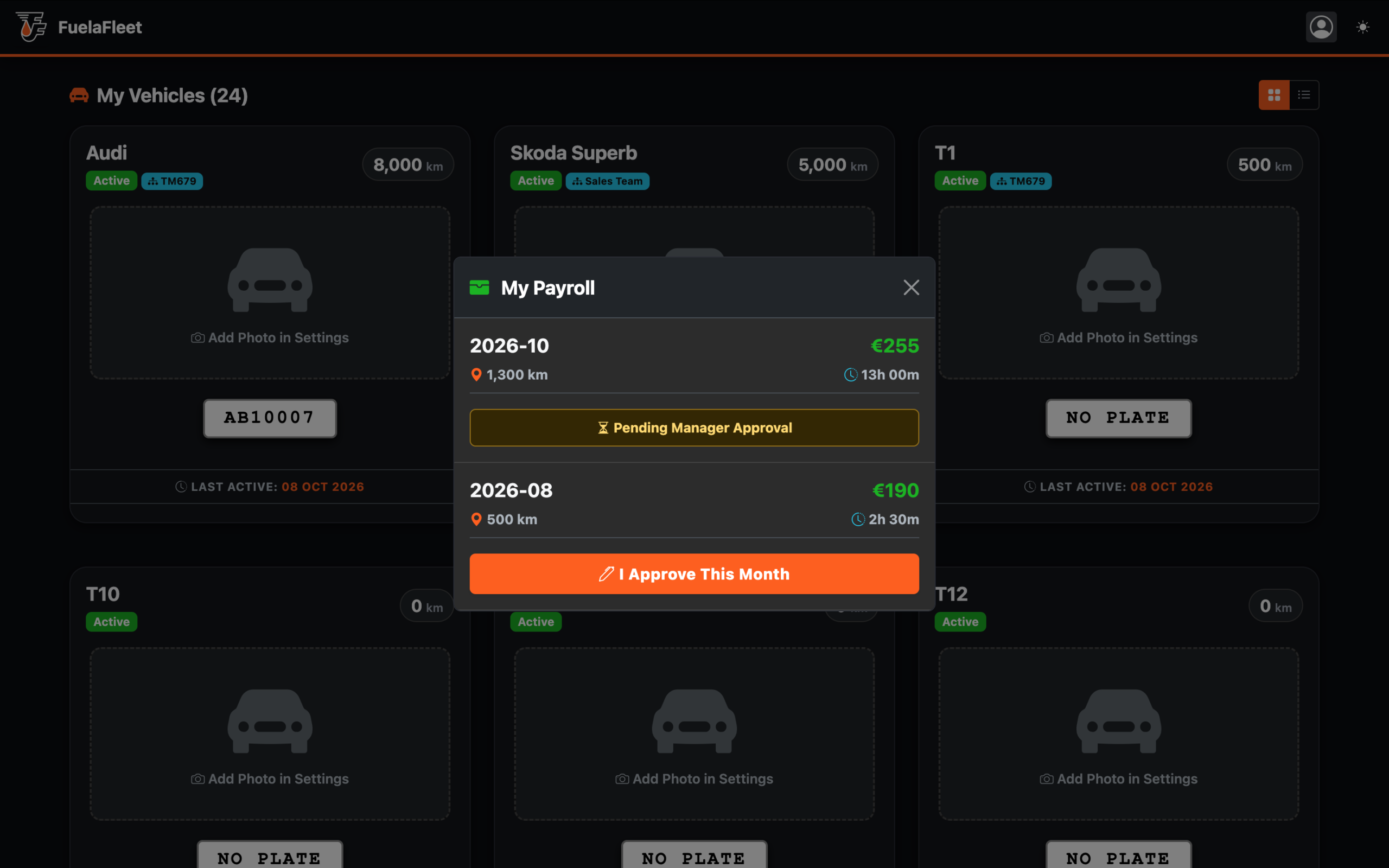
After the driver clicks the button, a modal window appears with the text: “I confirm that my mileage log and mileage data for this month are complete and accurate.” The orange button changes its status to “Pending manager approval.” This lets the manager know that the driver agrees with everything.
Step 3: Manager Approval
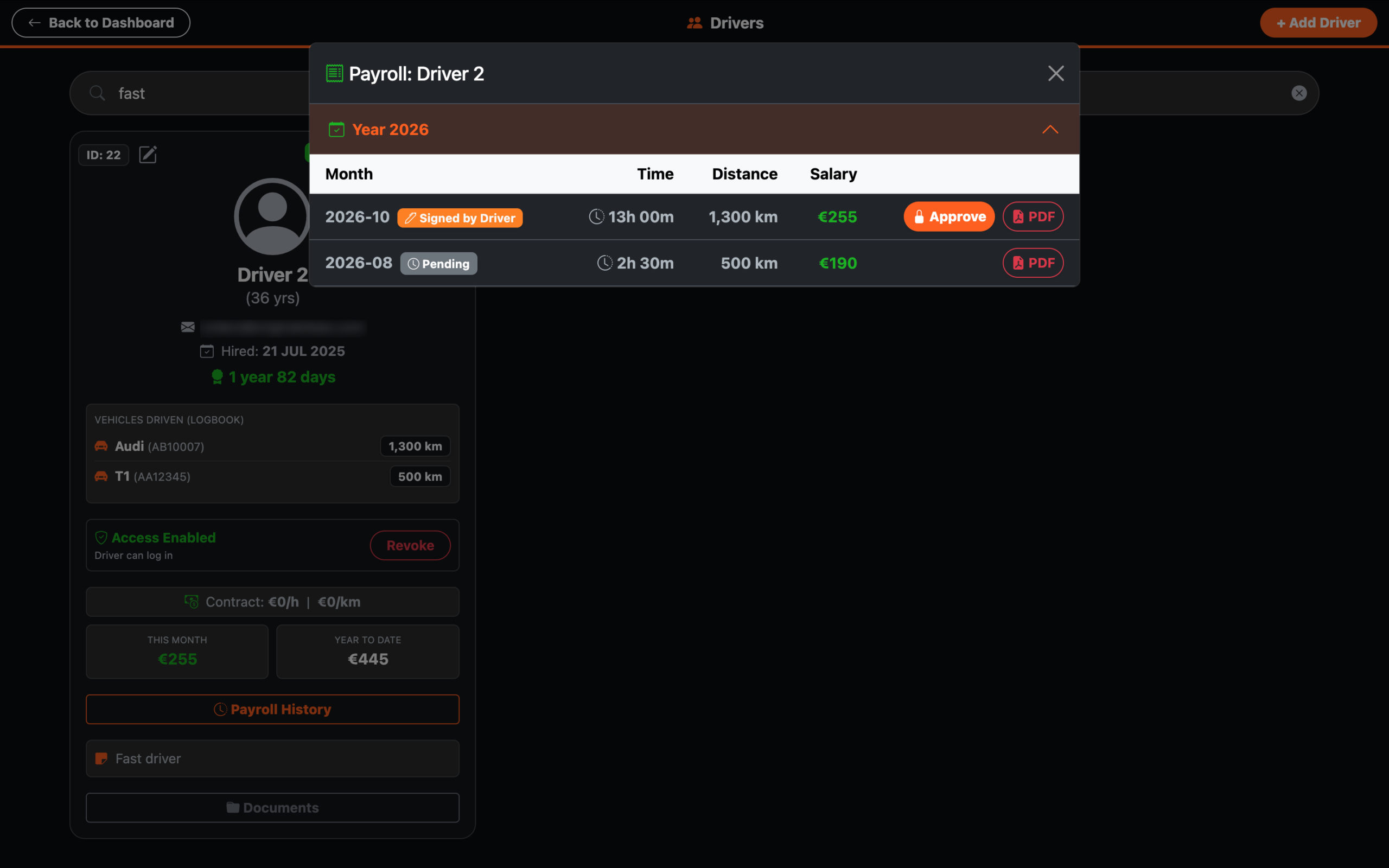
The manager can now see which month the driver has approved and confirm the gross pay using the “Approve” button. This concludes the approval process.
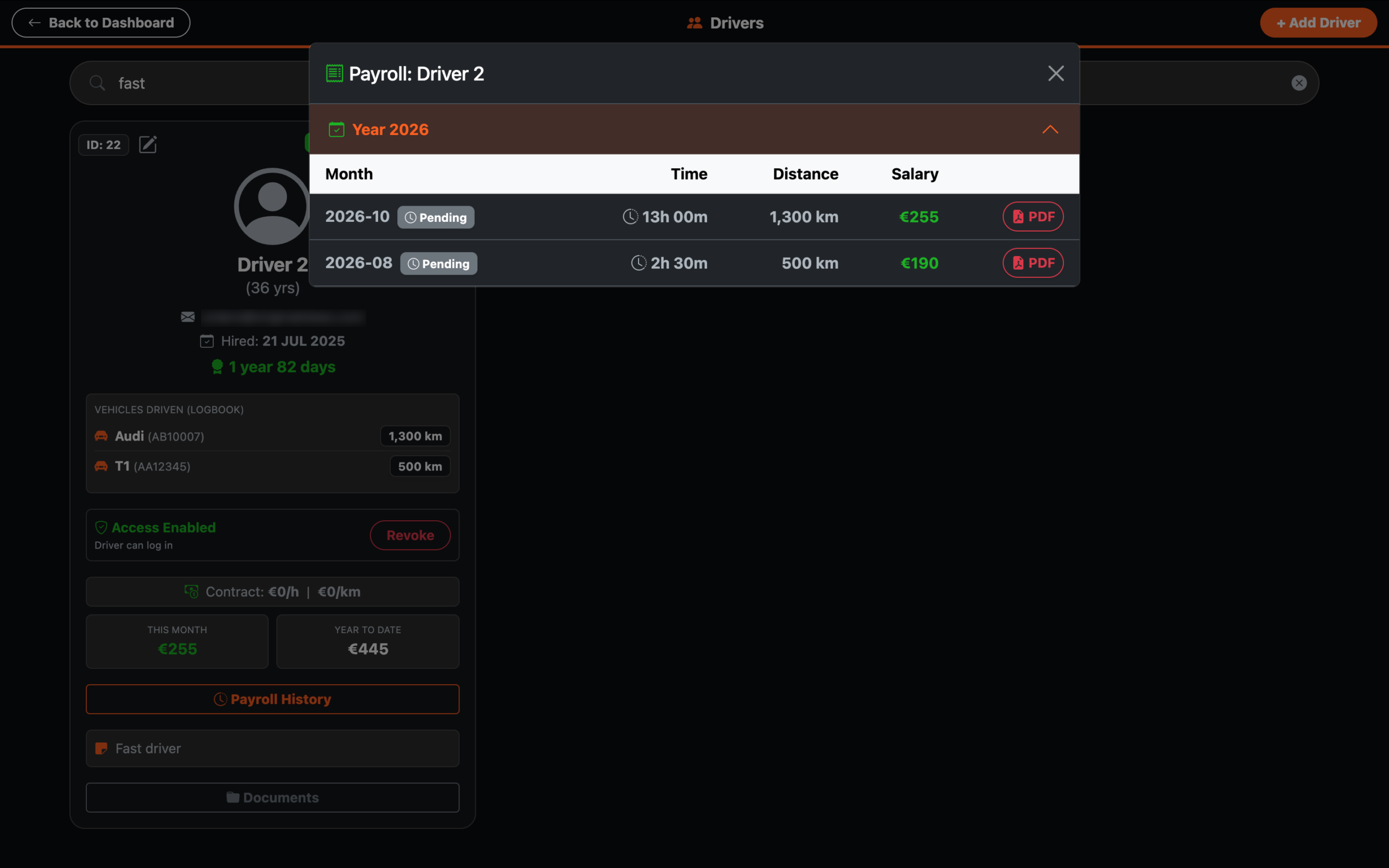
Step 4: Locked Payroll, Unlock and PDF Export
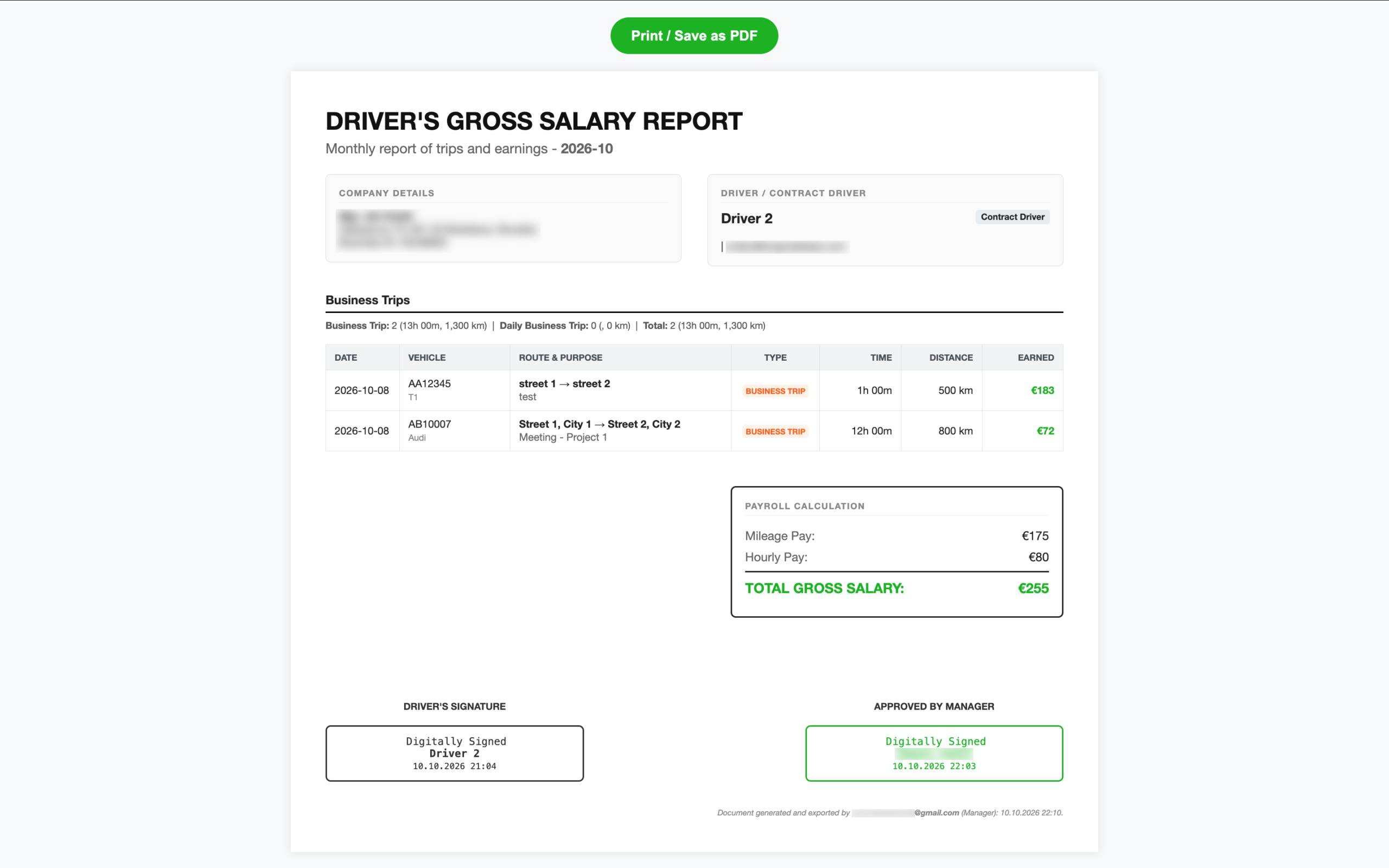
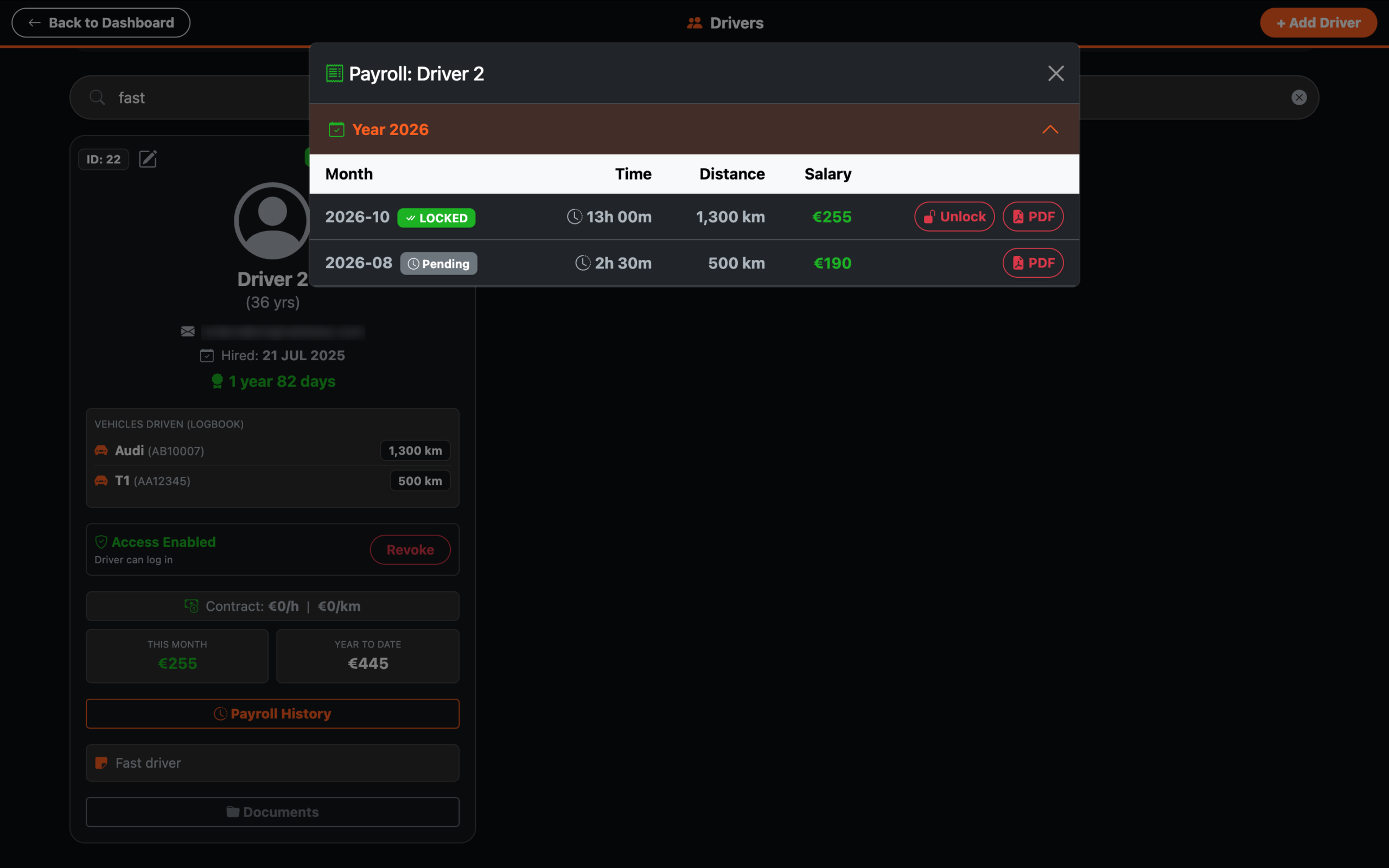
Once a manager approves a driver’s gross pay, the status “Locked” appears in the app. The manager or accountant can export a PDF containing digital timestamps. If necessary, the entire process can be unlocked by manager; in that case, the approval process must be repeated from the beginning.